# Opening example data
#### Data from the Fal estuary
Example datasets can be obtained *via* the **Help** menu item. Click **Help** > **Get Examples...**, and you can download the folder of examples called 'Examples_P8' to a location of your choice. Inside this folder, there are individual folders that hold a plethora of datasets. Here we will focus on data from a study of benthic infaunal communities in soft sediments from 27 sites over five creeks of the Fal estuary, SW England ({{@483#bkmrk-somerfieldetal1994a}}, {{@483#bkmrk-somerfieldetal1994b}}). Sediments at these sites were contaminated to varying degrees by heavy metals, from historic mining activities. Both faunal counts and environmental measures were obtained from the same set of sites. The data files from this study are located in a folder called 'Fal_benthic_fauna' inside 'Examples_P8'.
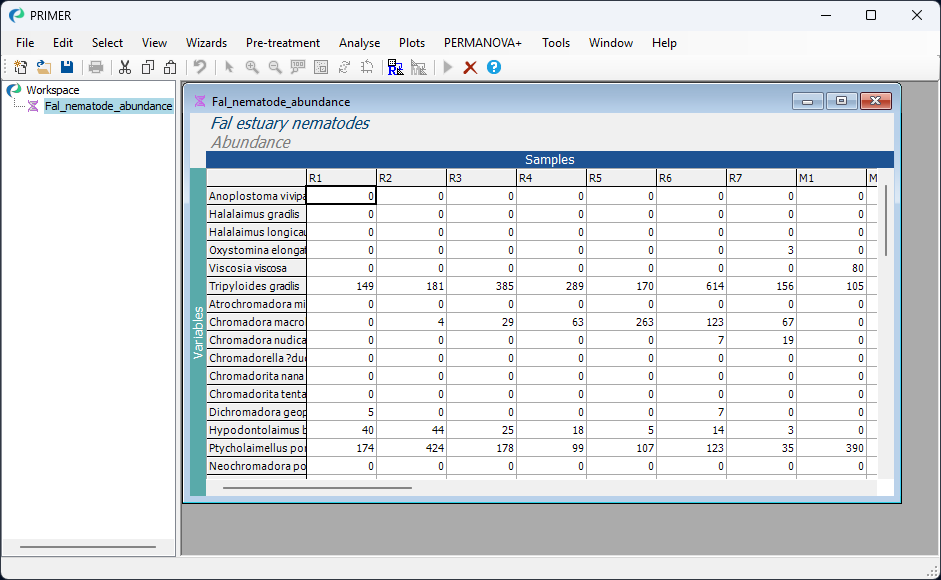
Here, we shall focus on data for the ***nematodes***, located in the file named 'Fal_nematode_abundance.pri', which contains abundances of 62 nematode species x 27 sites. Note that the extension **\*.pri** indicates a file containing a data matrix that has been saved in PRIMER's own internal binary format. (These data are also available in Excel format in the file called 'Fal_nematode_abundance.xlsx'.)
#### Open the Fal data in PRIMER
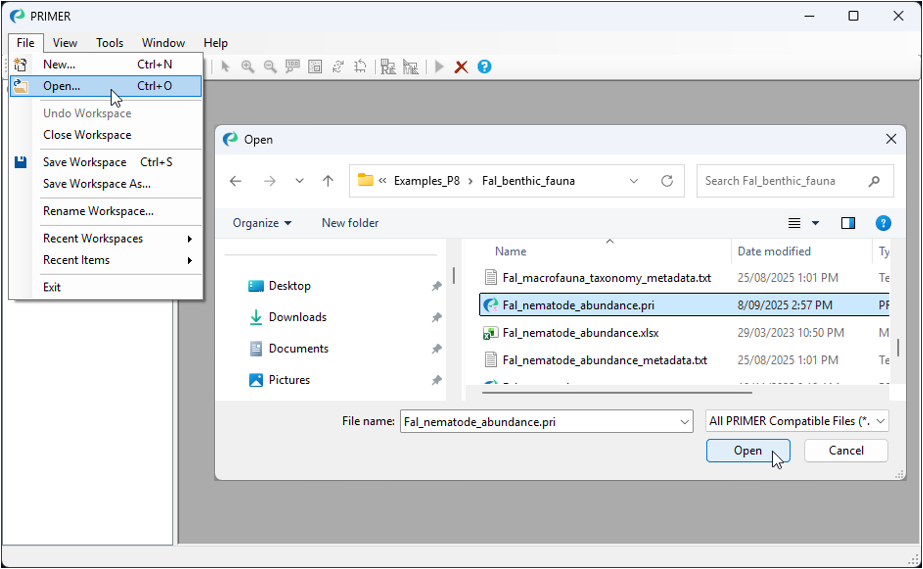
To open the species-by-samples data matrix, launch PRIMER, then click **File** > **Open** from the main menu, navigate to the 'Fal_benthic_fauna' folder inside the 'Examples_P8' folder (in the location you had specified for it), and select 'Fal_nematode_abundance.pri'. Click **Open** to display the species matrix.
[](https://learninghub.primer-e.com/uploads/images/gallery/2026-02/02-open-fal-data-all.png)
Alternatively, because this is a PRIMER file type (**\*.pri**), you can instead use Windows Explorer to navigate to the 'Fal_benthic_fauna' folder and just double-click on the file name. This will launch a PRIMER session, with the data matrix open in the PRIMER desktop.
[](https://learninghub.primer-e.com/uploads/images/gallery/2026-02/03-fal-datasheet-in-primer.png)
#### Properties of the data
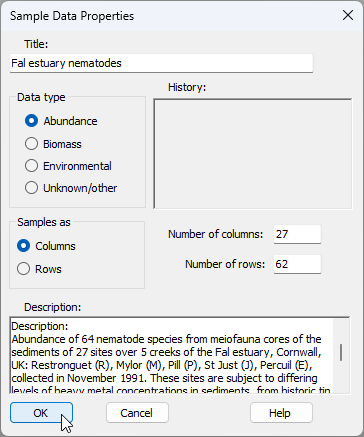
Click on **Edit** > **Properties** and you will see that PRIMER-format **\*.pri** data sheets carry other information about the data matrix as well, including:
- Title,
- Data type,
- Array size (number of columns and rows),
- Orientation (whether samples are found in columns or rows),
- a Description, and
- a History of what pre-treatments (such as a transformation) have been applied to them.
[](https://learninghub.primer-e.com/uploads/images/gallery/2026-02/04-sample-data-properties.png)
#### Factors associated with the data
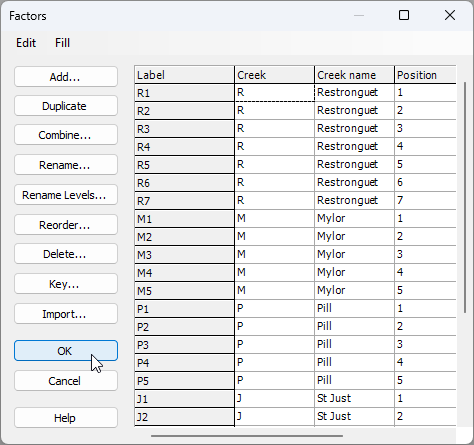
Click on **Edit** > **Factors...**, and you can see that a subsidiary sheet of three factors is also linked to this worksheet: 'Creek', a single-letter abbreviation for the creeks, the full 'Creek name' and a numeric 'Position' factor identifying the location of each sampling site down each creek.
[](https://learninghub.primer-e.com/uploads/images/gallery/2026-02/05-factors.png)
Note that additional factors could be added here by clicking **Add**, and also combinations of levels of existing factors can be created by clicking on **Combine**.