Install & uninstall
Install PRIMER
Downloading the installer
If you have purchased a subscription, a direct link to download the PRIMER 8 software installer (an executable file called 'PRIMER8Setup.exe') will be sent to you via email, along with your licence key. Alternatively, you can go to our download page and download it from there.¶ Note that the same installer file is used for all PRIMER 8 subscription plans. Double-click on the installer file and follow the prompts.
Running the installer
Important note: You will need to have administrator permissions on your user account in Windows to install PRIMER 8 software on your computer. If you do not have these permissions, please contact your IT team who should be able to assist you with the installation.
-
Double-click on the downloaded installation file 'PRIMER8Setup.exe' to start the installation process.

-
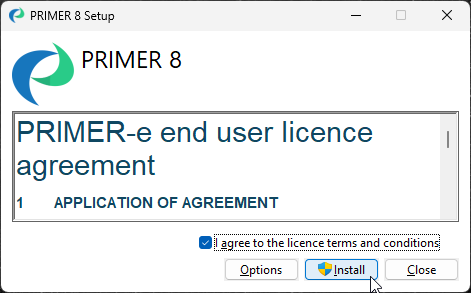
A 'PRIMER 8 Setup' window will appear. Please read the 'PRIMER-e end user licence agreement' (EULA). If you agree to the terms and conditions of this EULA, click on the tick-box $\checkmark$'I agree to the licence terms and conditions' and then click 'Install'.

-
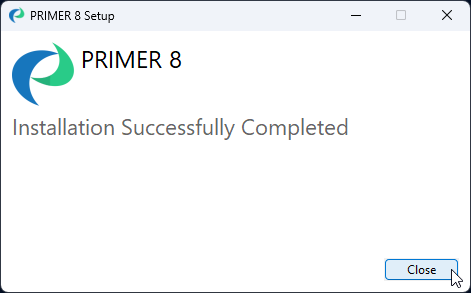
Follow the prompts and once the installation has completed successfully, click 'Close'.

Once the software is installed, you can launch the PRIMER 8 software and it will run in trial mode for free for 14 days. You will need to activate your licence key in order to enable full functionality of the software in accordance with your purchased subscription plan.
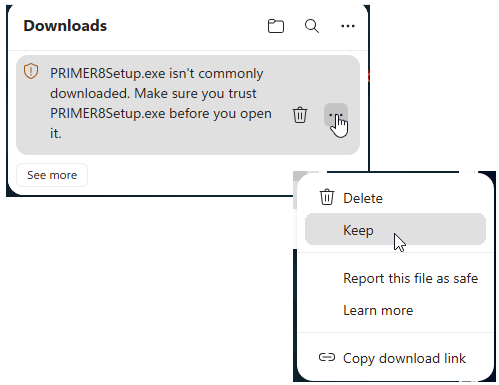
¶ If you are using Microsoft Edge as your browser, then you might see the following message when you try to download the executable setup file: 'PRIMER8Setup.exe isn't commonly downloaded. Make sure you trust PRIMER8Setup.exe before you open it.'
If this happens to you, then just click the three dots immediately to the right of the 'trash can' icon and choose 'Keep', like so:
Next, a larger window will open that says: 'Make sure you trust PRIMER8Setup.exe before you open it'. In this window, you can click on the black 'Delete' button, and you will see the option to click 'Keep anyway', as shown below.
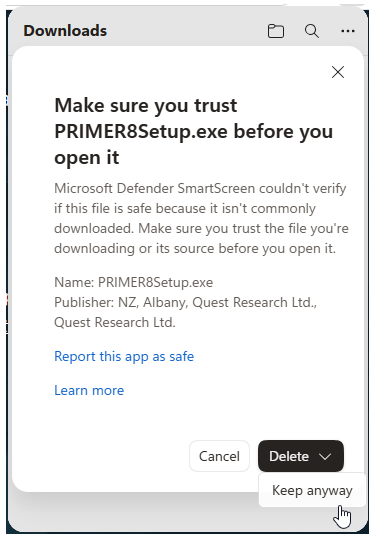
After you click 'Keep anyway', then the PRIMER8Setup.exe file will proceed to download, and you can continue with the installation process, as outlined above.
Uninstall PRIMER
Important note: You will need to have administrator permissions on your user account in Windows to uninstall PRIMER 8 software on your computer. If you do not have these permissions, please contact your IT team who should be able to assist you with uninstalling the software.
-
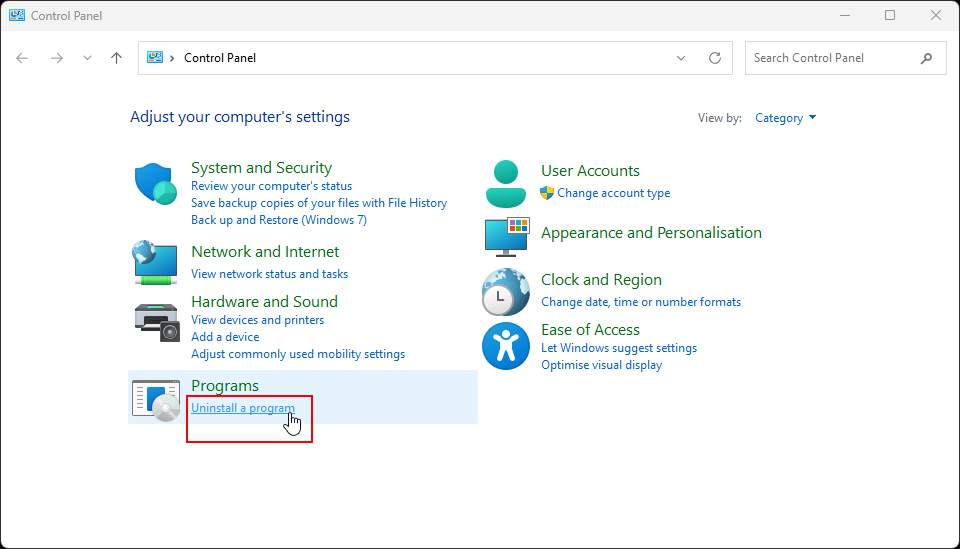
Open Control Panel on your computer.
- Click the start button or hit the Windows (⊞) key.
- Search for Control Panel.
-
Click on "Uninstall a program".

-
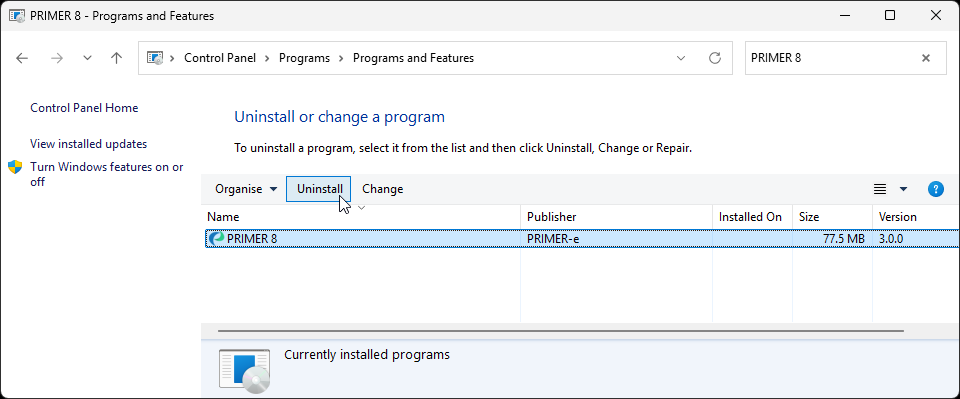
You will be presented with a list of installed programs on your computer. Look for 'PRIMER 8' in the list (programs are shown alphabetically), or type 'PRIMER 8' in the 'Search Programs and Features' box (located in the top right-hand corner of the dialog). Click on 'PRIMER 8' shown in the list of installed programs (so that it is highlighted), then click 'Uninstall'. Follow the prompts to finish uninstalling the PRIMER 8 software.

-
If you have activated PRIMER with a valid PRIMER 8 licence, then when you go through the steps to uninstall PRIMER 8 software from your machine, you will see a prompt that says 'Do you want to deactivate this instance of PRIMER to allow you to activate your licence elsewhere?' Click 'Yes' if you do or 'No' if you do not. Generally, the option most people want is 'Yes'. The main exception is if you are planning on reinstalling PRIMER on the same machine again.

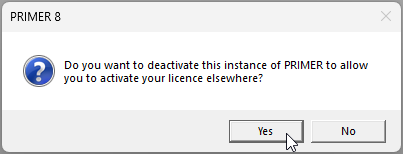
Note: Your machine must be connected to the internet for the deactivation to work. If you run into problems, please contact tech@primer-e.com.
Update the software
PRIMER 8 receives regular updates throughout your subscription period. If your machine is connected to the internet, PRIMER will periodically check for updates and offer you the option to download and install the latest version.
Check for updates manually
If you have been offline, have not used the software for a while, or have seen that you're not using the latest version, you can quickly and easily manually check for updates and install the latest version. Just open the PRIMER 8 software, and click Help > Check for Updates.
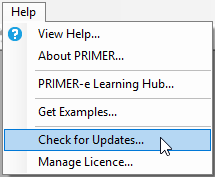
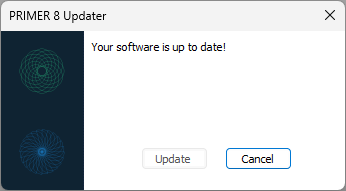
If an update is available, it will download and install automatically - no need for you to do anything else! If you are already using the latest version of PRIMER 8, then you will see the following message:
Check your version
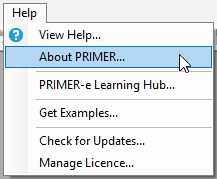
If you want to check (or double-check) the version of PRIMER 8 that you are currently running on your machine, click Help > About PRIMER
A splash screen will show the version you are running:
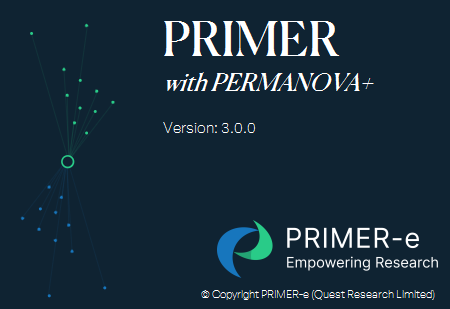
Compare the version number you see on the splashscreen against the version number of the most up-to-date version listed on our changelog to check that you're using the latest version.
View our Changelog
We have a changelog on our website, showing details of what has been changed with each update to a new (numbered) version of PRIMER 8 that is released by our developer team. The changelog effectively shows a running history of changes made over time to the PRIMER 8 software since its initial release.
Disable automatic checks
If you don't want PRIMER to check for updates automatically, you can disable this feature by clicking Tools > Options > Updates.