# Managing Your PRIMER 8 Installation
# Overview
This resource covers everything you need to know to manage your PRIMER 8 installation, including installing, uninstalling, updating, activating, deactivating, and configuring floating licences.
- [Install PRIMER](https://learninghub.primer-e.com/link/1108)
- [Uninstall PRIMER](https://learninghub.primer-e.com/link/1118)
- [Update the software](https://learninghub.primer-e.com/link/1093)
- [Activate & deactivate overview](https://learninghub.primer-e.com/link/1122)
- [Activate PRIMER](https://learninghub.primer-e.com/link/1109)
- [Deactivate PRIMER](https://learninghub.primer-e.com/link/1111)
- [Deactivate & reactivate PRIMER](https://learninghub.primer-e.com/link/1112)
- [Trouble-shoot activation issues](https://learninghub.primer-e.com/link/1110)
- [Floating licence configuration guide](https://learninghub.primer-e.com/link/1080)
# Install & uninstall
# Install PRIMER
#### Downloading the installer
If you have purchased a subscription, a direct link to download the PRIMER 8 software installer (an executable file called 'PRIMER8Setup.exe') will be sent to you *via* email, along with your licence key. Alternatively, you can go to our [download page](https://www.primer-e.com/download) and download it from there.¶ Note that the same installer file is used for all PRIMER 8 subscription plans. Double-click on the installer file and follow the prompts.
#### Running the installer
***Important note:** You will need to have administrator permissions on your user account in Windows to install PRIMER 8 software on your computer. If you do not have these permissions, please contact your IT team who should be able to assist you with the installation.*
1. Double-click on the downloaded installation file 'PRIMER8Setup.exe' to start the installation process.
[](https://learninghub.primer-e.com/uploads/images/gallery/2026-02/01-primer8setup-exe.png)
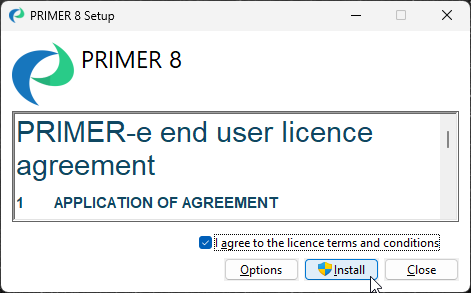
2. A 'PRIMER 8 Setup' window will appear. Please read the 'PRIMER-e end user licence agreement' ([EULA](https://www.primer-e.com/licence-agreement/)). If you agree to the terms and conditions of this EULA, click on the tick-box $\checkmark$'I agree to the licence terms and conditions' and then click '**Install**'.
[](https://learninghub.primer-e.com/uploads/images/gallery/2026-02/install-primer-dialog.png)
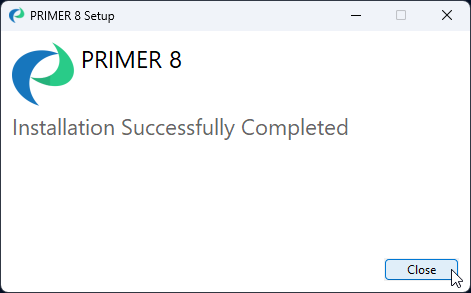
3. Follow the prompts and once the installation has completed successfully, click '**Close**'.
[](https://learninghub.primer-e.com/uploads/images/gallery/2026-02/03-installation-success.png)
Once the software is installed, you can launch the PRIMER 8 software and it will run in [trial mode](https://learninghub.primer-e.com/link/1122) for free for 14 days. You will need to activate your licence key in order to enable full functionality of the software in accordance with your purchased subscription plan.
---
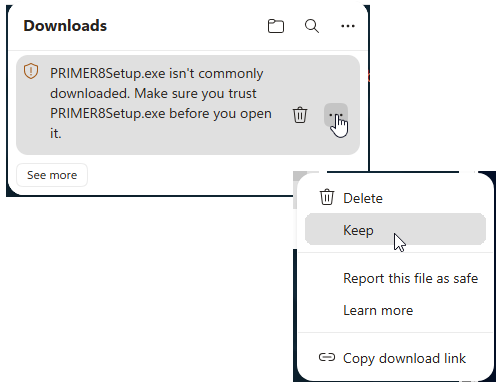
¶ *If you are using **Microsoft Edge** as your browser, then you might see the following message when you try to download the executable setup file: 'PRIMER8Setup.exe isn't commonly downloaded. Make sure you trust PRIMER8Setup.exe before you open it.'*
*If this happens to you, then just click the three dots immediately to the right of the 'trash can' icon and choose '**Keep**', like so:*
[](https://learninghub.primer-e.com/uploads/images/gallery/2026-08/download-messages-p8-ms-edge-01.png)
*Next, a larger window will open that says: 'Make sure you trust PRIMER8Setup.exe before you open it'. In this window, you can click on the black 'Delete' button, and you will see the option to click '**Keep anyway**', as shown below.*
[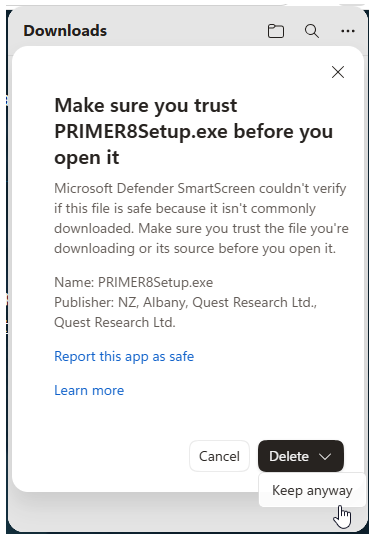](https://learninghub.primer-e.com/uploads/images/gallery/2026-08/download-messages-p8-ms-edge-02.png)
*After you click '**Keep anyway**', then the PRIMER8Setup.exe file will proceed to download, and you can continue with the installation process, as outlined above.*
# Uninstall PRIMER
***Important note:** You will need to have administrator permissions on your user account in Windows to uninstall PRIMER 8 software on your computer. If you do not have these permissions, please contact your IT team who should be able to assist you with uninstalling the software.*
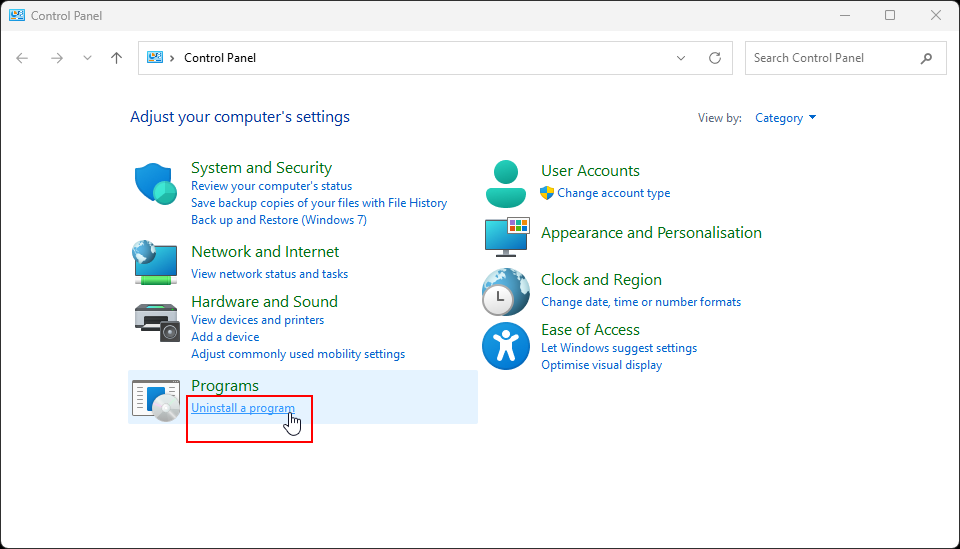
1. Open **Control Panel** on your computer.
- Click the start button or hit the Windows (⊞) key.
- Search for **Control Panel**.
2. Click on "**Uninstall a program**".
[](https://learninghub.primer-e.com/uploads/images/gallery/2026-02/control-panel-uninstall.png)
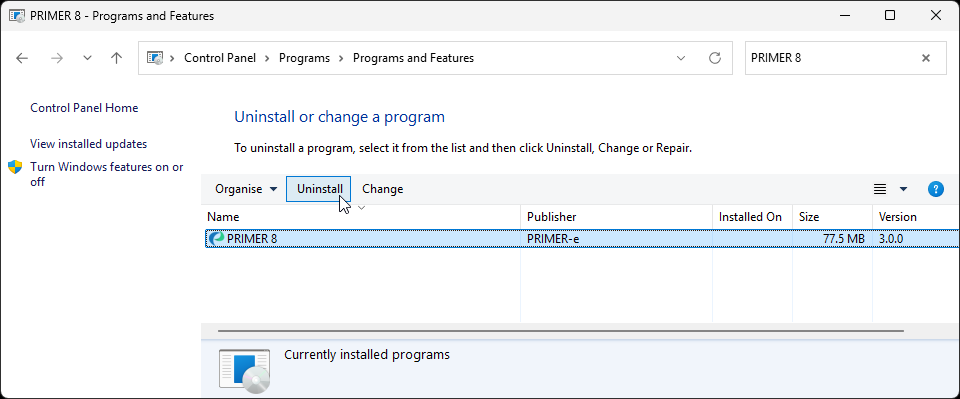
3. You will be presented with a list of installed programs on your computer. Look for '**PRIMER 8**' in the list (programs are shown alphabetically), or type '**PRIMER 8**' in the 'Search Programs and Features' box (located in the top right-hand corner of the dialog). Click on '**PRIMER 8**' shown in the list of installed programs (so that it is highlighted), then click '**Uninstall**'. Follow the prompts to finish uninstalling the PRIMER 8 software.
[](https://learninghub.primer-e.com/uploads/images/gallery/2026-02/uninstall-primer.png)
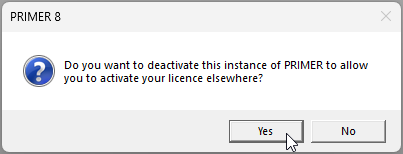
4. If you have activated PRIMER with a valid PRIMER 8 licence, then when you go through the steps to uninstall PRIMER 8 software from your machine, you will see a prompt that says 'Do you want to deactivate this instance of PRIMER to allow you to activate your licence elsewhere?' Click 'Yes' if you do or 'No' if you do not. Generally, the option most people want is '**Yes**'. The main exception is if you are planning on reinstalling PRIMER on the same machine again.
[](https://learninghub.primer-e.com/uploads/images/gallery/2026-02/uninstall-deactivate-message.png)
***Note**: Your machine must be connected to the internet for the deactivation to work. If you run into problems, please contact **tech@primer-e.com**.*
# Update the software
PRIMER 8 receives regular updates throughout your subscription period. If your machine is connected to the internet, PRIMER will periodically check for updates and offer you the option to download and install the latest version.
#### Check for updates manually
If you have been offline, have not used the software for a while, or have seen that you're not using the latest version, you can quickly and easily manually check for updates and install the latest version. Just open the PRIMER 8 software, and click **Help** > **Check for Updates**.
[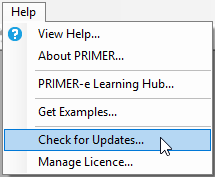](https://learninghub.primer-e.com/uploads/images/gallery/2026-02/check-for-updates-2.png)
If an update is available, it will download and install automatically - no need for you to do anything else!
If you are already using the latest version of PRIMER 8, then you will see the following message:
[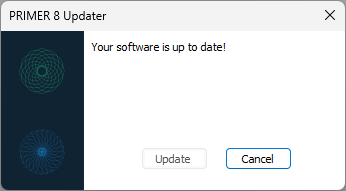](https://learninghub.primer-e.com/uploads/images/gallery/2026-02/up-to-date.png)
#### Check your version
If you want to check (or double-check) the version of PRIMER 8 that you are currently running on your machine, click **Help** > **About PRIMER**
[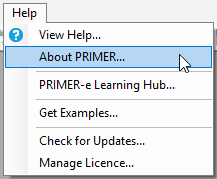](https://learninghub.primer-e.com/uploads/images/gallery/2026-02/about-primer.png)
A splash screen will show the version you are running:
[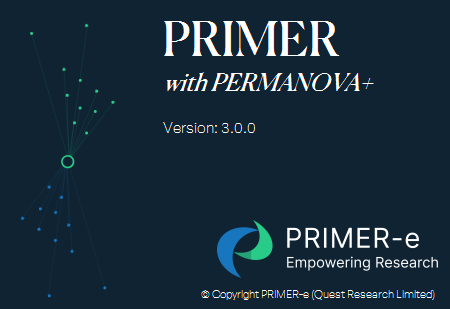](https://learninghub.primer-e.com/uploads/images/gallery/2026-02/splash-screen.png)
Compare the version number you see on the splashscreen against the version number of the most up-to-date version listed on our [**changelog**](https://www.primer-e.com/changelog) to check that you're using the latest version.
#### View our Changelog
We have a [**changelog**](https://www.primer-e.com/changelog) on our website, showing details of what has been changed with each update to a new (numbered) version of PRIMER 8 that is released by our developer team. The changelog effectively shows a running history of changes made over time to the PRIMER 8 software since its initial release.
#### Disable automatic checks
If you don't want PRIMER to check for updates automatically, you can disable this feature by clicking **Tools** > **Options** > **Updates**.
# Activate & deactivate
# Overview
#### Trial mode
When you first install PRIMER, it will run in a free trial mode for 14 days. In trial mode, all of the PRIMER 8 and PERMANOVA+ menus and dialogs can be viewed and explored, but not all of them are fully functional. In addition, you will be unable to save, copy to the clipboard, or print your work, and all graphics you produce will be watermarked. Full functionality requires a licence key to be purchased.
To purchase a licence, please visit our website [https://www.primer-e.com](https://www.primer-e.com/), or contact us directly at ***primer@primer-e.com***.
#### Licence types
PRIMER offers two main types of licence:
##### 1. Offline (also called regular or node-locked)
During activation, machines using this type of licence download an offline licence file and authenticate using that file. This file does not need to be renewed until the end of the subscription period and so users can work online or offline for the duration of their subscription after the initial activation.
Offline licences are generally best for individuals or groups who have their own machines and want to install PRIMER on them for their use anytime and anywhere. This is the most common type of licence in PRIMER, and if you're wondering what licence type you have, it's probably this one.
##### 2. Floating
Floating licences allow many instances of PRIMER to use the licence but limit the number of simultaneous end users. Because of this limitation, instances of PRIMER using the floating licence must always be online and able to talk to our authentication server.
Floating licences are generally used in situations where there are shared machines, like teaching contexts (e.g., in a university computer lab, where they want students to be able to access PRIMER software) or perhaps on a shared server.
Please email ***primer@primer-e.com*** if you're interested in purchasing a floating licence.
#### Licence seats
Each licence includes a fixed number of seats. A seat is consumed when a unique combination of user and device activates the software with a valid licence key. For example, the same person signing in from two different machines would use two seats. Once all seats are in use, no further activations are possible until a seat is released.
#### Activating and deactivating
Both activating and deactivating PRIMER require the device to be online and able to talk to our authentication server (see the section entitled '[Network requirements](#bkmrk-network-requirements)'). Offline licences also have an alternative pathway to activation if their machine cannot talk to our authentication server; for more information, see the section entitled '[Activate PRIMER](https://learninghub.primer-e.com/link/1109)'. Floating licences must always be able to talk to the authentication server.
#### Activation limits
Standard PRIMER 8 licences operate mainly offline and have a limited number of activation cycles during the subscription period. The specific number depends on the number of seats associated with your licence. Multiple activation cycles are provided so that you can move PRIMER to a new machine if, for example, you've bought a new computer or your old one has crashed. The licence is not intended for regular movement across a large number of computers. If you deactivate and reactivate too many times within a subscription period, you will receive an error. Please contact us at ***primer@primer-e.com*** for assistance if this happens.
Activation limits do not apply to floating licences. A floating licence permits PRIMER 8 to be installed on an unlimited number of machines, but these must all remain online. The number of seats in your subscription plan simply limits the number of simultaneous end-users at any one time.
#### Network requirements
PRIMER needs to communicate with `licensing.primer-e.com` over ports `80` and `443` for activation and deactivation. If your firewall blocks this, contact your IT administrator to unblock this. If that is impossible, contact ***tech@primer-e.com*** with the details of your situation and we'll see what we can do to help.
# Activate PRIMER
***Note:** The machine on which you are activating PRIMER must be connected to the internet and able to talk to our authentication server.*
1. Launch **PRIMER 8**.
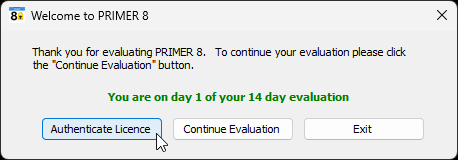
2. Click on the '**Authenticate Licence**' button in the 'Welcome to PRIMER 8' dialog box. (*Note: If you have already exhausted your 14-day trial, a message may appear to advise you that 'Your evaluation period has expired'. If that happens, simply click on '**Authenticate Licence**' to carry on with the instructions to activate your licence.*)
[](https://learninghub.primer-e.com/uploads/images/gallery/2026-03/day-one-evaluation-period.png)
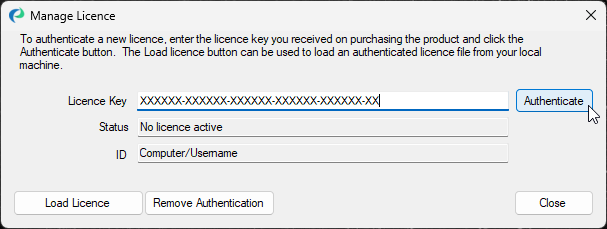
3. In the 'Manage Licence' dialog window, copy and paste your 37-character licence key code into the 'Licence Key' box and click '**Authenticate**'.
[](https://learninghub.primer-e.com/uploads/images/gallery/2026-02/authenticate-primer-licence-2.png)
PRIMER 8 will now operate with all of the entitlements and functionality associated with your subscription plan.
#### Offline activation
Sometimes a device cannot talk to our authentication server. This can happen if the device doesn't have an internet connection, or if there are strict firewall policies in place. If your device cannot talk to our authentication server over the internet, follow the steps below:
***Note:** If you have a floating licence, you cannot use this method to activate your software as floating licences do not use offline licence files. If you are an IT administrator looking to configure floating licences for a large number of end-users, see the section entitled '[Floating licence configuration guide](https://learninghub.primer-e.com/link/1080)'.*
1. Launch **PRIMER 8**.
2. Click on the '**Authenticate Licence**' button in the 'Welcome to PRIMER 8' dialog box.
3. In the 'Manage Licence' dialog window, copy and paste your 37-character licence key code into the 'Licence Key' box and click '**Authenticate**'.
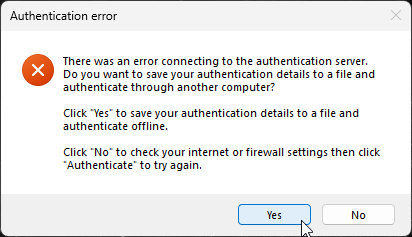
4. After you have clicked **Authenticate**, PRIMER will try to authenticate the licence details with our authentication server, and when it cannot, it will offer you the chance to save your authentication details to a file. Click '**Yes**' and save those details to a file.
[](https://learninghub.primer-e.com/uploads/images/gallery/2026-03/authentication-error-no-internet-2.png)
5. Email the authentication details file to ***tech@primer-e.com***. We will manually create an offline licence file for you and send it back to you.
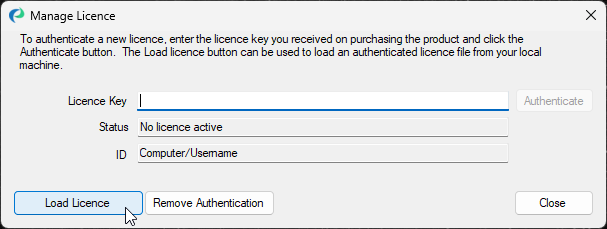
6. Once you have received your offline licence file from us, open **PRIMER** and select '**Authenticate Licence**' again to get the 'Manage Licence' dialog. Click '**Load Licence**' and select the file that you received from us.
[](https://learninghub.primer-e.com/uploads/images/gallery/2026-06/manage-license-load-license-3.png)
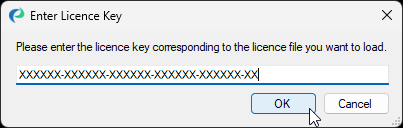
7. Once you have selected the offline licence file in the file browser, you will be prompted for your licence key. Enter the licence key that you used when you tried to authenticate in step 3, and click '**OK**'.
[](https://learninghub.primer-e.com/uploads/images/gallery/2026-02/enter-licence-key.png)
PRIMER will load your offline licence file and you should be able to access PRIMER normally.
#### Refresh your licence file
If you have upgraded your subscription, for instance from **PRIMER 8 Lite** to **PRIMER 8 with PERMANOVA+** but you still cannot access the functionality of items in the PERMANOVA+ menu, you may need to refresh your offline licence file. This can be done by re-authenticating with your licence key. To do that:
1. Navigate to the 'Manage Licence' dialog.
- Open **PRIMER** > **Help** > **Manage Licence...**
2. Enter your licence key into the box labelled '**Licence Key**'.
3. Click '**Authenticate**'.
If you have an internet connection and your machine can talk to our authentication server, re-authenticating your licence in this way will download a new offline licence file to your machine, thus enabling all of the entitlements (such as the PERMANOVA+ routines) associated with your licence. If your machine cannot talk to our authentication server, you will have to send us your authentication details as outlined in the section entitled '[Offline activation](#bkmrk-offline-activation)'.
# Deactivate PRIMER
Sometimes you may need to deactivate your instance of PRIMER. This could be because you want to free up a seat on the licence or because you want to change which licence key you have activated on your machine in order to use PRIMER.
If you want to deactivate your instance of PRIMER **AND** uninstall the software, please see the section entitled '[Uninstall PRIMER](https://learninghub.primer-e.com/link/1118)'.
***Note:** Your machine must be connected to the internet for the deactivation to work. If you run into problems, please contact **tech@primer-e.com**.*
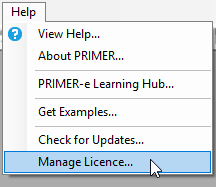
1. Open PRIMER 8 and click on **Help** > **Manage Licence...**
[](https://learninghub.primer-e.com/uploads/images/gallery/2026-02/manage-licence-help-menu.png)
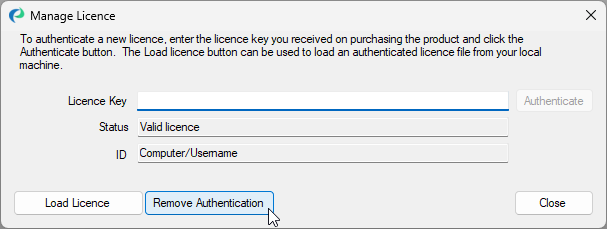
2. In the 'Manage Licence' window, click on the '**Remove Authentication**' button.
[](https://learninghub.primer-e.com/uploads/images/gallery/2026-02/remove-authentication-2.png)
3. The 'Status' will change from 'Valid licence' to 'No licence active', indicating that you have successfully removed your licence key's authentication of the software from this machine. Click on '**Close**'.
# Deactivate & reactivate PRIMER
If you need to move PRIMER 8 to a new machine, switch to a different licence key, or switch to a new subscription plan, you'll first need to deactivate your current installation. Deactivating frees up a seat on your licence, allowing you to activate PRIMER on a new machine or under a new licence or subscription plan.
- If you want to deactivate and reactivate on the same machine, see the section entitled '[Deactivate and reactivate](#bkmrk-deactivate-and-react)'.
- If you want to move PRIMER to another machine, see the section entitled '[Uninstall and reinstall](#bkmrk-uninstall-and-reinst)'.
- If you need more detailed help, see the section entitled '[In-depth walkthroughs](#bkmrk-in-depth-walkthrough)'.
#### Deactivate and reactivate
This process applies if you want to deactivate and reactivate on the same machine. For example, if there has been a change to your subscription plan, you may need to re-authenticate the software for the change to take effect.
1. Open **PRIMER 8** and click **Help** > **Manage Licence...** > **Remove Authentication**.
[](https://learninghub.primer-e.com/uploads/images/gallery/2026-02/remove-authentication-2.png)
2. Copy and paste your licence key into the text box labelled '**Licence Key**'.
3. Click '**Authenticate**'.
[](https://learninghub.primer-e.com/uploads/images/gallery/2026-02/authenticate-primer-licence-2.png)
#### Uninstall and reinstall
This process is necessary if you're moving PRIMER from one machine to another.
1. Open the '**Control Panel**' on your computer (e.g., click the Start menu or press the Windows key and type 'Control Panel')
2. Select '**PRIMER 8**' from the list of programs.
3. Click '**Uninstall**'.
[](https://learninghub.primer-e.com/uploads/images/gallery/2026-02/uninstall-primer.png)
4. Follow the prompts to uninstall. In response to the question: 'Do you want to deactivate this instance of PRIMER to allow you to activate your licence elsewhere?', click '**Yes**'.
[](https://learninghub.primer-e.com/uploads/images/gallery/2026-02/uninstall-deactivate-message.png)
5. [Download](https://www.primer-e.com/download) and run the PRIMER 8 installer ('PRIMER8Setup.exe') on your new machine.
6. Open **PRIMER**. In the 'Welcome to PRIMER 8' dialog, click on '**Authenticate Licence**'.
[](https://learninghub.primer-e.com/uploads/images/gallery/2026-03/day-one-evaluation-period.png)
7. Enter your licence key into the box labelled '**Licence Key**'.
8. Click '**Authenticate**'.
[](https://learninghub.primer-e.com/uploads/images/gallery/2026-02/authenticate-primer-licence-2.png)
#### In-depth walkthroughs
For more information on these processes, see the guides below:
- [Install PRIMER](https://learninghub.primer-e.com/link/1108)
- [Uninstall PRIMER](https://learninghub.primer-e.com/link/1118)
- [Activate PRIMER](https://learninghub.primer-e.com/link/1109)
- [Deactivate PRIMER](https://learninghub.primer-e.com/link/1111)
# Trouble-shoot activation issues
Below are some of the problems you may encounter when attempting to activate PRIMER 8 software. You can trouble-shoot these issues yourself, given the information below, or contact us at ***primer@primer-e.com*** if you need more help.
#### You have exceeded the number of permitted activations
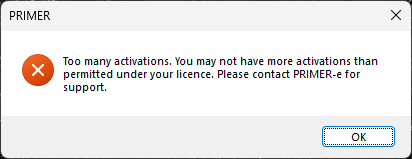
Your licence key will permit you to install and activate the software on a number of devices based on the number of seats you have purchased in your subscription plan. If you attempt to activate PRIMER 8 more times than permitted by your licence, you will see an error message that says: '*Too many activations. You may not have more activations than permitted under your licence. Please contact PRIMER-e for support.*'.
[](https://learninghub.primer-e.com/uploads/images/gallery/2026-02/too-many-activations-message.png)
If this happens, you can:
- Increase the number of seats associated with your current subscription plan;
- Start a new subscription plan to accommodate new machine(s)/end-user(s); or
- Deactivate and uninstall the PRIMER 8 software from your machine, enabling you to install and activate the software on a different machine using that same licence key.
#### You have reauthenticated too many times
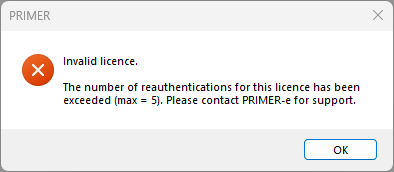
If you deactivate and reactivate too many times within a subscription period, you will receive an error saying '*The number of reauthentications for this licence has been exceeded*'. If this happens, contact us directly at ***primer@primer-e.com*** with your licence's serial number (or licence key) and a brief explanation of your situation. We'll review your request and get back to you, typically within 1–2 business days.
[](https://learninghub.primer-e.com/uploads/images/gallery/2026-02/too-many-reauthentications.png)
#### You cannot deactivate your software
If you are unable to deactivate your software from an old machine (e.g., due to a machine failure), email us directly at ***primer@primer-e.com*** with your licence's serial number (or licence key) and a brief explanation of your situation. We'll review your request against our records and get back to you, typically within 1–2 business days. Please note that if you are not the registered owner of the licence key, we will need the registered owner to confirm the request before we can proceed.
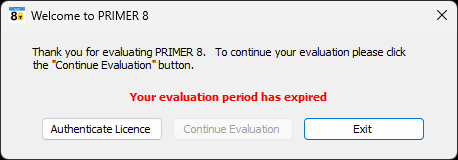
#### Your evaluation period has expired
If you have been using the software in trial mode and have not authenticated a valid licence key within the free 14-day trial period, then the next time you attempt to start up PRIMER, you may see the following notice:
[](https://learninghub.primer-e.com/uploads/images/gallery/2026-02/evaluation-period-expired.png)
If you have a valid licence key, then you can simply click on '**Authenticate Licence**'. Enter your valid licence key in the resulting dialog and click '**Authenticate**' to activate the fully functional software in accordance with your paid subscription plan.
#### Other issues or questions
If you have any other issues or questions, don't hesitate to reach out. Contact ***primer@primer-e.com*** for general enquiries or ***tech@primer-e.com*** for technical issues. Please provide as much detail as possible when getting in touch — we love screenshots!
# Floating licences
# Floating licence configuration guide
#### Overview
A floating licence allows you to install PRIMER 8 software on as many computers as you like, but only a set number of computers (indicated by the number of seats associated with the floating licence key) may use the software simultaneously.
The floating licence is different to our node-locked licencing option in that it doesn't have an offline licence file. Computers using PRIMER 8 with a floating licence must be able to connect to `licensing.primer-e.com` over ports `80` and `443` when the software is in use.
#### The installer
The floating licence version of PRIMER 8 uses the same installer as the regular version of PRIMER 8. You can download this installation file ('PRIMER8Setup.exe') from: [https://www.primer-e.com/download](https://www.primer-e.com/download).
#### Authenticating
**Using a key**
The floating licence version of PRIMER 8 can be authenticated in the same way that the regular version of PRIMER 8 is authenticated. This involves entering the licence key provided into a user interface.
The full instructions to activate PRIMER 8 in this manner can be found here: [Activate PRIMER](https://learninghub.primer-e.com/link/1109).
**Using a config file**
A configuration file can be used to provide the licence key automatically, enabling deployment without the user having to provide a key. This is useful for computer labs and managed environments.
Create a file named `PRIMER8.config` with the following content:
```xml
Floating
YOUR_LICENSE_KEY
```
Replace `YOUR_LICENSE_KEY` with your actual licence key.
Place the config file in one of the following locations:
- `%ProgramData%\PRIMER-e\PRIMER8.config` — Applies to all users on the machine (recommended for managed deployments)
- `%LocalAppData%\PRIMER-e\PRIMER8.config` — Applies to the current user only
If both files exist, the `%LocalAppData%` configuration takes priority.
The config file can be deployed before PRIMER is installed. You may need to create the `PRIMER-e` folder first.
On startup, PRIMER 8 reads the config file and authenticates automatically.
#### Network/Firewall
Please ensure all machines using PRIMER with a floating licence can talk to `licensing.primer-e.com` over port `80` and `443`.
Should the connection fail, PRIMER will retry authentication twice more at set intervals. The server maintains each machine's session for 10 minutes, so if the network recovers before all retries are exhausted, users won't be interrupted.
#### Licence Seats
A licence seat is counted per user, not per machine. This means multiple users can share the same machine (such as a server) and each will occupy their own seat when using PRIMER. Seats are handed out on a first come, first served basis. When all seats are in use, subsequent users will receive a message saying they are unable to use PRIMER as the seat limit has been reached.
When a user closes the application normally, the seat will be released immediately. Otherwise, the seat will be released when the session expires on the server.
#### Questions or queries
If you have any questions or queries, please email [tech@primer-e.com](mailto:tech@primer-e.com).