# Deactivate & reactivate PRIMER
If you need to move PRIMER 8 to a new machine, switch to a different licence key, or switch to a new subscription plan, you'll first need to deactivate your current installation. Deactivating frees up a seat on your licence, allowing you to activate PRIMER on a new machine or under a new licence or subscription plan.
- If you want to deactivate and reactivate on the same machine, see the section entitled '[Deactivate and reactivate](#bkmrk-deactivate-and-react)'.
- If you want to move PRIMER to another machine, see the section entitled '[Uninstall and reinstall](#bkmrk-uninstall-and-reinst)'.
- If you need more detailed help, see the section entitled '[In-depth walkthroughs](#bkmrk-in-depth-walkthrough)'.
#### Deactivate and reactivate
This process applies if you want to deactivate and reactivate on the same machine. For example, if there has been a change to your subscription plan, you may need to re-authenticate the software for the change to take effect.
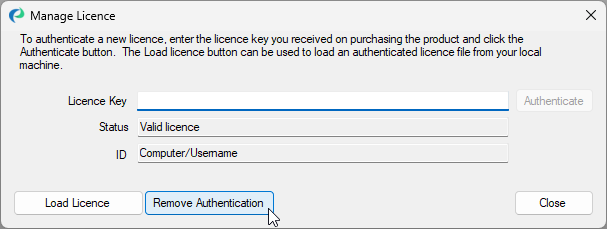
1. Open **PRIMER 8** and click **Help** > **Manage Licence...** > **Remove Authentication**.
[](https://learninghub.primer-e.com/uploads/images/gallery/2026-02/remove-authentication-2.png)
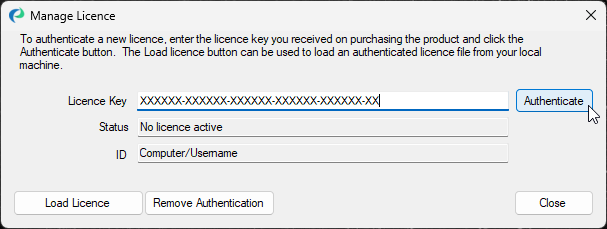
2. Copy and paste your licence key into the text box labelled '**Licence Key**'.
3. Click '**Authenticate**'.
[](https://learninghub.primer-e.com/uploads/images/gallery/2026-02/authenticate-primer-licence-2.png)
#### Uninstall and reinstall
This process is necessary if you're moving PRIMER from one machine to another.
1. Open the '**Control Panel**' on your computer (e.g., click the Start menu or press the Windows key and type 'Control Panel')
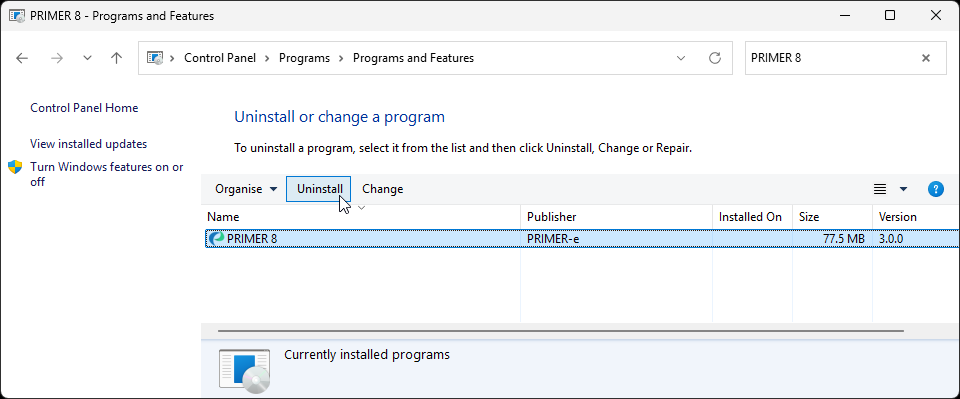
2. Select '**PRIMER 8**' from the list of programs.
3. Click '**Uninstall**'.
[](https://learninghub.primer-e.com/uploads/images/gallery/2026-02/uninstall-primer.png)
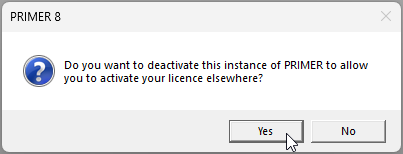
4. Follow the prompts to uninstall. In response to the question: 'Do you want to deactivate this instance of PRIMER to allow you to activate your licence elsewhere?', click '**Yes**'.
[](https://learninghub.primer-e.com/uploads/images/gallery/2026-02/uninstall-deactivate-message.png)
5. [Download](https://www.primer-e.com/download) and run the PRIMER 8 installer ('PRIMER8Setup.exe') on your new machine.
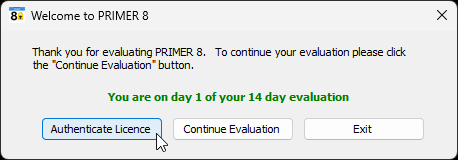
6. Open **PRIMER**. In the 'Welcome to PRIMER 8' dialog, click on '**Authenticate Licence**'.
[](https://learninghub.primer-e.com/uploads/images/gallery/2026-03/day-one-evaluation-period.png)
7. Enter your licence key into the box labelled '**Licence Key**'.
8. Click '**Authenticate**'.
[](https://learninghub.primer-e.com/uploads/images/gallery/2026-02/authenticate-primer-licence-2.png)
#### In-depth walkthroughs
For more information on these processes, see the guides below:
- [Install PRIMER](https://learninghub.primer-e.com/link/1108)
- [Uninstall PRIMER](https://learninghub.primer-e.com/link/1118)
- [Activate PRIMER](https://learninghub.primer-e.com/link/1109)
- [Deactivate PRIMER](https://learninghub.primer-e.com/link/1111)