# Install PRIMER
#### Downloading the installer
If you have purchased a subscription, a direct link to download the PRIMER 8 software installer (an executable file called 'PRIMER8Setup.exe') will be sent to you *via* email, along with your licence key. Alternatively, you can go to our [download page](https://www.primer-e.com/download) and download it from there.¶ Note that the same installer file is used for all PRIMER 8 subscription plans. Double-click on the installer file and follow the prompts.
#### Running the installer
***Important note:** You will need to have administrator permissions on your user account in Windows to install PRIMER 8 software on your computer. If you do not have these permissions, please contact your IT team who should be able to assist you with the installation.*
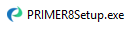
1. Double-click on the downloaded installation file 'PRIMER8Setup.exe' to start the installation process.
[](https://learninghub.primer-e.com/uploads/images/gallery/2026-02/01-primer8setup-exe.png)
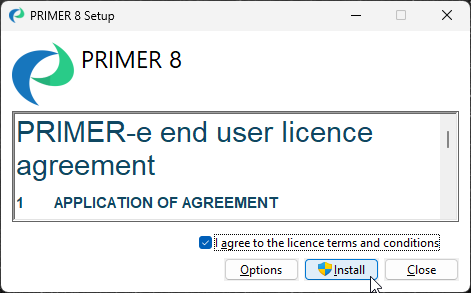
2. A 'PRIMER 8 Setup' window will appear. Please read the 'PRIMER-e end user licence agreement' ([EULA](https://www.primer-e.com/licence-agreement/)). If you agree to the terms and conditions of this EULA, click on the tick-box $\checkmark$'I agree to the licence terms and conditions' and then click '**Install**'.
[](https://learninghub.primer-e.com/uploads/images/gallery/2026-02/install-primer-dialog.png)
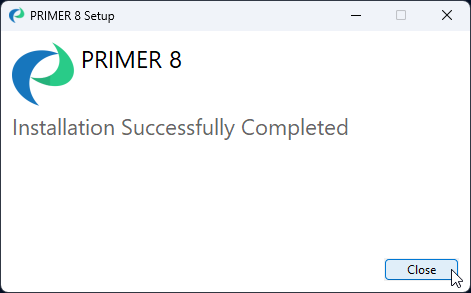
3. Follow the prompts and once the installation has completed successfully, click '**Close**'.
[](https://learninghub.primer-e.com/uploads/images/gallery/2026-02/03-installation-success.png)
Once the software is installed, you can launch the PRIMER 8 software and it will run in [trial mode](https://learninghub.primer-e.com/link/1122) for free for 14 days. You will need to activate your licence key in order to enable full functionality of the software in accordance with your purchased subscription plan.
---
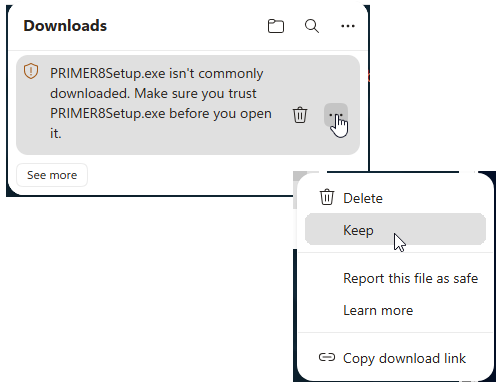
¶ *If you are using **Microsoft Edge** as your browser, then you might see the following message when you try to download the executable setup file: 'PRIMER8Setup.exe isn't commonly downloaded. Make sure you trust PRIMER8Setup.exe before you open it.'*
*If this happens to you, then just click the three dots immediately to the right of the 'trash can' icon and choose '**Keep**', like so:*
[](https://learninghub.primer-e.com/uploads/images/gallery/2026-08/download-messages-p8-ms-edge-01.png)
*Next, a larger window will open that says: 'Make sure you trust PRIMER8Setup.exe before you open it'. In this window, you can click on the black 'Delete' button, and you will see the option to click '**Keep anyway**', as shown below.*
[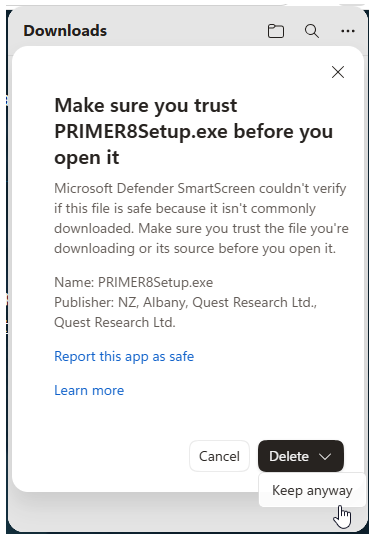](https://learninghub.primer-e.com/uploads/images/gallery/2026-08/download-messages-p8-ms-edge-02.png)
*After you click '**Keep anyway**', then the PRIMER8Setup.exe file will proceed to download, and you can continue with the installation process, as outlined above.*