# Managing Your PRIMER 8 Subscription
# Subscribe to PRIMER 8 software
PRIMER 8 is now offered as a subscription product. This means you pay less up-front, and get regular free updates automatically within the term of your subscription.
#### Subscription plan & number of seats
Begin by choosing one of the following ***subscription plans*** from our [pricing page](https://www.primer-e.com/pricing):
- **PRIMER 8 with PERMANOVA+**; or
- **PRIMER 8 Lite**
Choose a ***term*** for your plan:
- **12 months (1 year)**; or
- **36 months (3 years)**
Also choose the ***number of seats*** you want for your subscription. This should correspond to the number of end-users you wish to service with your software licence.
Click the '**Get Started**' button to go through to our secure payment portal and complete your order. Note that the 'Quantity' you choose in the payment portal for your subscription (pre-populated by your choice) will correspond to the ***number of seats*** you wish to purchase.
#### Licence key & serial number
After we have received your payment, you will receive confirmation of your subscription, and a unique ***licence key*** (37 characters long) with its associated ***serial number*** for your software licence will be sent to you *via* email. The licence key will enable you to activate the software on your device(s). It contains all of the necessary important information about your licence that will be required to correctly activate your software, including all of the features and entitlements associated with your chosen subscription plan and the number of seats you have purchased. Contact us directly at ***primer@primer-e.com*** and provide us with your licence's serial number if you have any questions about your licence.
#### Customer portal
When you subscribe, you will also receive an email invitation to PRIMER-e's [customer portal](https://subscriptions.primer-e.com/portal/primere).† Inside this portal, you can view and manage your subscription(s), view your invoices and payment history, and make payments *via* a secure payment gateway. If you have any questions about your subscription, contact us directly at ***primer@primer-e.com*** with your subscription number (SUBS-), which you can see directly inside the customer portal and also in the ‘Welcome’ email sent from us to you, in which we provided you with your software licence key. There is a unique subscription number associated with each subscription, and you may have more than one (e.g., if you are looking after a lab that has multiple individual licences).
---
†*Please contact us directly at **primer@primer-e.com** if you have a subscription but did not receive an invitation to the customer portal.*
# Manage your subscription
# Using the customer portal
You can manage your subscription directly from within the [customer portal](https://subscriptions.primer-e.com/portal/primere).† More specifically, you can:
- [Change your subscription plan or term](https://learninghub.primer-e.com/link/1126)
- [Change the number of seats](https://learninghub.primer-e.com/link/1127)
- [Change/update your card details](https://learninghub.primer-e.com/link/1128)
- [Add a payment method (card)](https://learninghub.primer-e.com/link/1129)
- [Change the card associated with a subscription](https://learninghub.primer-e.com/link/1130)
- [Renew your subscription](https://learninghub.primer-e.com/link/1131) or
- [Cancel your subscription](https://learninghub.primer-e.com/link/1090).
If you run into any issues with managing your subscription through the portal, if your desired change to a new licencing solution cannot be achieved *via* the portal (e.g., you'd like to move to a floating licence, or you'd like to pay for a change using a direct bank transfer instead of a credit/debit card), or if you need any other kind of special assistance, just get in touch with our admin team directly at ***primer@primer-e.com*** and we will be happy to help.
---
†*Please contact us directly at **primer@primer-e.com** if you have a subscription but did not receive an invitation to the customer portal.*
# Change your subscription plan
### Ready for a change?
You may wish to change your subscription so as to achieve either:
- a '**step up**' (increasing entitlements, the number of seats or the length of your term); or
- a '**step down**' (decreasing entitlements, the number of seats or the length of your term).
In general, you can achieve any 'step-up' change:
- immediately *via* the [customer portal](https://subscriptions.primer-e.com/portal/primere), or
- at the end of your current term, by contacting us at ***primer@primer-e.com***.
Generally, a step-down change can only be implemented at the end of your subscription's current term, i.e., at renewal. If you wish to implement a step-down change, a change at the end of your current term, or any other change that you cannot achieve yourself in the customer portal, then get in touch with us directly at ***primer@primer-e.com***.
### 'Step up' your current term and/or plan (with immediate effect)
Sign in to PRIMER-e's [customer portal](https://subscriptions.primer-e.com/portal/primere). You can:
- Change from **PRIMER 8 Lite** to $\rightarrow$ **PRIMER 8 with PERMANOVA+**; and/or
- Change your term from **12 months** (1 year) to $\rightarrow$ **36 months** (3 years).
In the portal, you will be shown all term/plan options that are available to you, given your current plan. Once you make your choice, the credit available from your current term/plan will be applied toward your new term/plan, and you will be issued with an invoice for the remainder. You can pay the invoice either immediately *via* a credit/debit card associated with your subscription, or *via* any payment method shown on our invoice. (*Note: if you have a card associated with your subscription, then the payment will be made on this card automatically when you confirm the change.*)
Once your invoice has been paid, the change to your subscription will take effect immediately and an email will be sent to you confirming this. Your subscription number, licence key and serial number remain the same, and there is no need to uninstall/re-install the software itself. However, you will need to [re-activate the licence key](https://learninghub.primer-e.com/link/1112) for your new term/plan and its associated entitlements to occur.
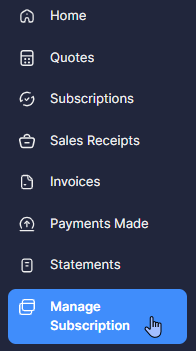
1. Click on '**Manage Subscription**' (listed in the left-hand panel):
[](https://learninghub.primer-e.com/uploads/images/gallery/2026-05/00-manage-subscriptions.png)
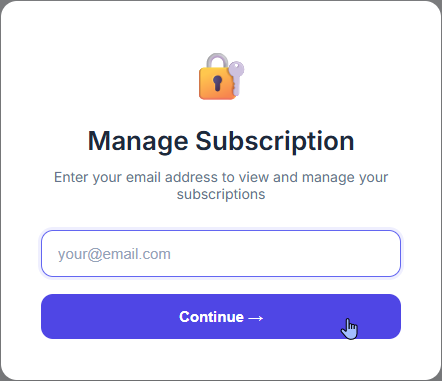
Enter your email address into the box and click '**Continue**'.
[](https://learninghub.primer-e.com/uploads/images/gallery/2026-05/00-manage-subscription-2nd-window.png)
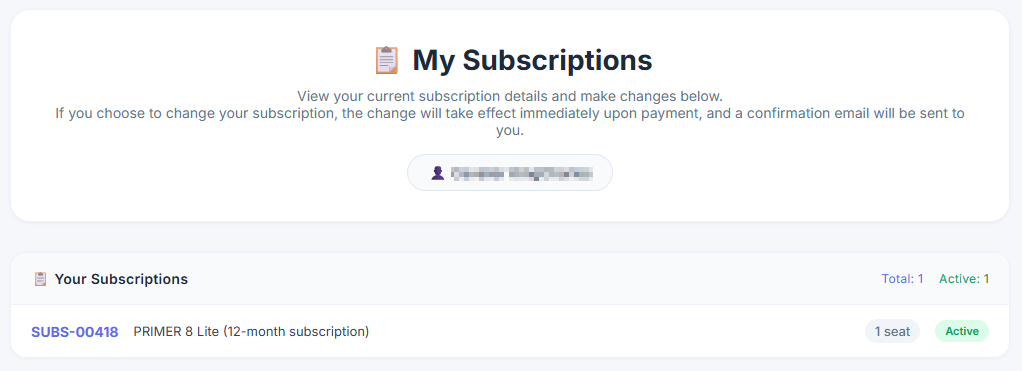
You will see a list of all your current subscriptions, like so:
[](https://learninghub.primer-e.com/uploads/images/gallery/2026-05/01-see-subscriptions-top.png)
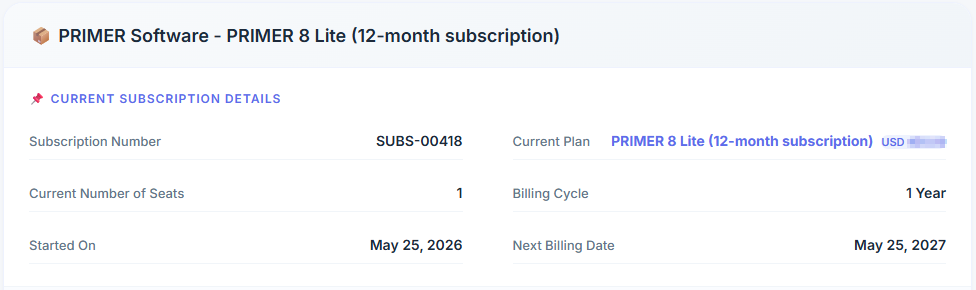
2. Click on the name (shown in lavender on the left) of the specific subscription you wish to change (e.g., 'SUBS-00418'). This will take you to more information about that particular subscription further down on the page.
[](https://learninghub.primer-e.com/uploads/images/gallery/2026-05/02-see-particular-subs-details.png)
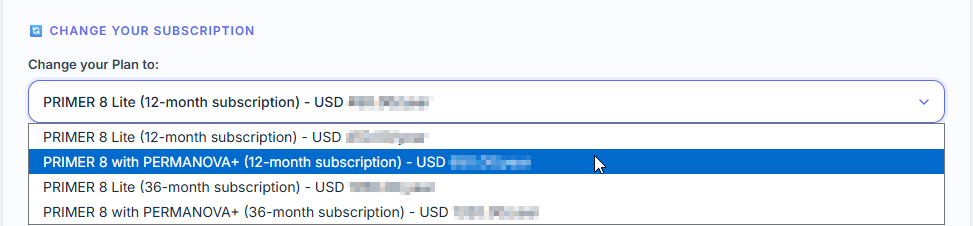
Under this information, you will see a section labeled '**Change your subscription**', which includes a drop-down menu. Click on this and you will see all of the 'step-up' plans available to you, along with their price per term. Simply select the plan of your choice. For example, we might choose to add PERMANOVA+ to our current plan (but stick with a 12-month term), so we would choose: 'PRIMER 8 with PERMANOVA+ (12-month subscription)', as shown below:
[](https://learninghub.primer-e.com/uploads/images/gallery/2026-05/03-change-plan-or-term.png)
3. If you have a coupon, enter the coupon code where it says '**Add Coupon**' and click '**Apply**'. *(Note: if you have am existing coupon that is already associated with your subscription and it can be applied in this situation, then it will automatically show up here, and you can choose whether or not to apply it.)
[](https://learninghub.primer-e.com/uploads/images/gallery/2026-05/04-add-coupon.png)
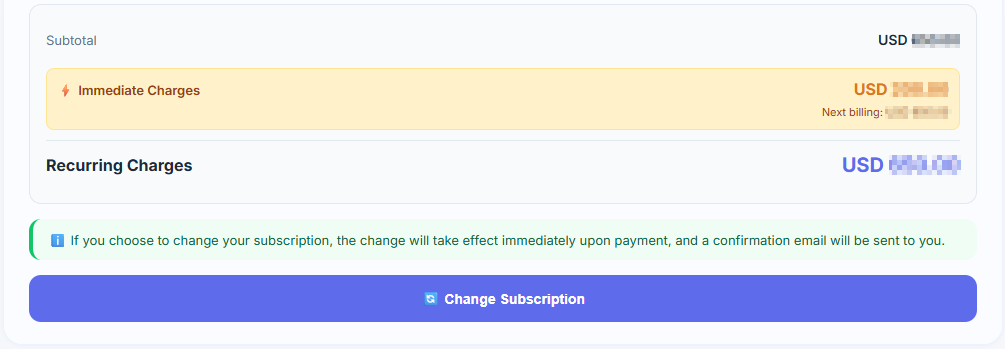
4. Check the details associated with this change, including the additional payment required.
[](https://learninghub.primer-e.com/uploads/images/gallery/2026-05/05-details-of-costs-for-the-change.png)
Note that:
- To make your changes you will have to pay for the differential amount. You will be sent an invoice directly.
- Auto-charge will be enabled for this subscription if you use a payment method that supports recurring payments (i.e., if you have a debit or credit card associated with this subscription).
If all the details showing are correct and you are happy to proceed (making sure to include your coupon code, if any), then click '**Change Subscription**' at the bottom of the window.
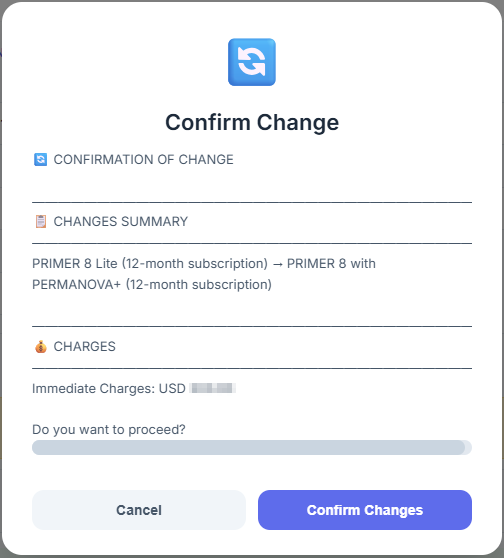
6. A '**Confirm Change**' window will be shown to you, including a summary of the changes requested and details of the immediate charges.
[](https://learninghub.primer-e.com/uploads/images/gallery/2026-05/06-confirm-changes.png)
Click '**Confirm Changes**' to make the change.
Upon successful completion of the above steps, you will receive an email confirming the change(s) to your subscription plan. The change will take place immediately upon payment, and your licence key will reflect this change in your entitlements right away.
***Important:*** Your current licence key remains the same, but ***you will need to [re-authenticate the software](https://learninghub.primer-e.com/link/1112) for this change to take effect***.
### 'Step down' your current term and/or plan
At some point, you may decide you wish to '**step down**' your current plan and/or term in some way, e.g.:
- Change from **PRIMER 8 with PERMANOVA+** to $\rightarrow$ **PRIMER 8 Lite**; and/or
- Change your term from **36 months** (3 years) to $\rightarrow$ **12 months** (1 year).
You cannot make this type of change directly in the customer portal. You will need to contact us at ***primer@primer-e.com*** and describe the specific change(s) you want and we will be happy to help. When the change has been made, you will receive an email confirming that your request has been documented and that ***this change will be implemented upon renewal of your subscription***. Your invoice/payment due at that time will reflect this change. Note that:
- Your current licence key remains the same and will not reflect the change until the end of your current term, i.e. at ***renewal***.
- You will still have access to all the entitlements and features of your current plan, until the end of your current subscription period.
# Change the number of seats
### Need more seats?
You can **increase** the number of seats:
- immediately *via* the [customer portal](https://subscriptions.primer-e.com/portal/primere), or
- at the end of your current term, by contacting us at ***primer@primer-e.com***.
You can only [**decrease** the number of seats](https://learninghub.primer-e.com/link/1127#bkmrk-you-cannot-decrease-) at the end of your subscription's current term, i.e., at renewal. If you wish to decrease the number of seats, then get in touch with us directly at ***primer@primer-e.com*** and we will be happy to help.
### Increase the number of seats (with immediate effect)
1. Sign in to PRIMER-e's [customer portal](https://subscriptions.primer-e.com/portal/primere).
In the portal, you will be able to increase the number of seats. Once you make your choice, the credit available from your current plan will be applied toward your new plan having more seats, and you will be issued with an invoice for the remainder. You can pay the invoice either immediately *via* a credit/debit card associated with your subscription, or *via* any payment method shown on our invoice. (*Note: if you have a card associated with your subscription, then the payment will be made on this card automatically when you confirm the change.*)
Once your invoice has been paid, the change to your subscription will take effect immediately and an email will be sent to you confirming this. Your subscription number, licence key and serial number remain the same, and there is no need to uninstall/re-install the software itself. The software will be able to be installed and licence activated on the additional number of machines (seats) you have purchased.
2. Click on '**Manage Subscription**' (listed in the left-hand panel).
[](https://learninghub.primer-e.com/uploads/images/gallery/2026-05/00-manage-subscriptions.png)
(You may need to enter your email address and click '**Continue**' at this point).
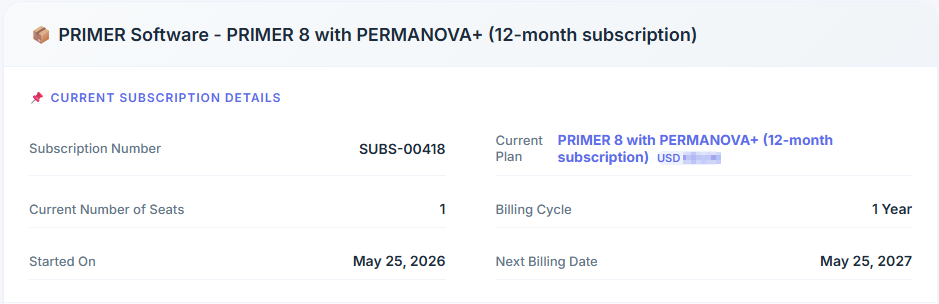
3. Click on the name (shown in lavender) of the specific subscription you wish to change (e.g., 'SUBS-00418'). This will take you to that particular subscription on the page.
[](https://learninghub.primer-e.com/uploads/images/gallery/2026-05/07-see-particular-subs-details-2.png)
Under this information, you will see a section labeled '**Change your Number of Seats to:**' with a drop-down menu. Click on this and select the number of seats you want to change to. For example, we might choose to go from 1 to 2 seats, as shown below:
[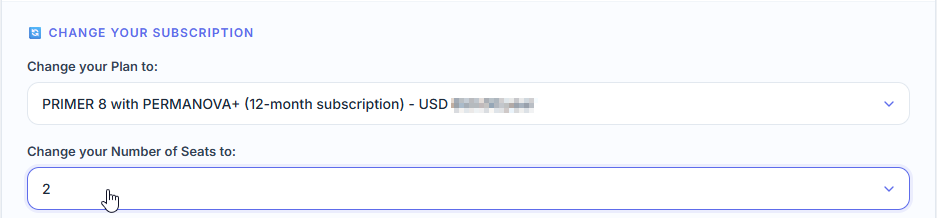](https://learninghub.primer-e.com/uploads/images/gallery/2026-05/08-change-no-seats.png)
4. If you have a coupon, enter the coupon code where it says '**Add Coupon**' and click '**Apply**'. *(Note: if you have an existing coupon that is already associated with your subscription and it can be applied in this situation, then it will automatically show up here, and you can choose whether or not to apply it.)
[](https://learninghub.primer-e.com/uploads/images/gallery/2026-05/04-add-coupon.png)
5. Check the details associated with this change, including the additional payment required.
[](https://learninghub.primer-e.com/uploads/images/gallery/2026-05/05-details-of-costs-for-the-change.png)
Note that:
- To make your changes you will have to pay for the differential amount. You will be sent an invoice directly.
- Auto-charge will be enabled for this subscription if you use a payment method that supports recurring payments (i.e., if you have a debit or credit card associated with this subscription).
If all the details showing are correct and you are happy to proceed (making sure to include your coupon code, if any), then click '**Change Subscription**' at the bottom of the window.
6. Next, a '**Confirm Change**' window will be shown to you, including a summary of the change(s) requested and details of the immediate charges.
[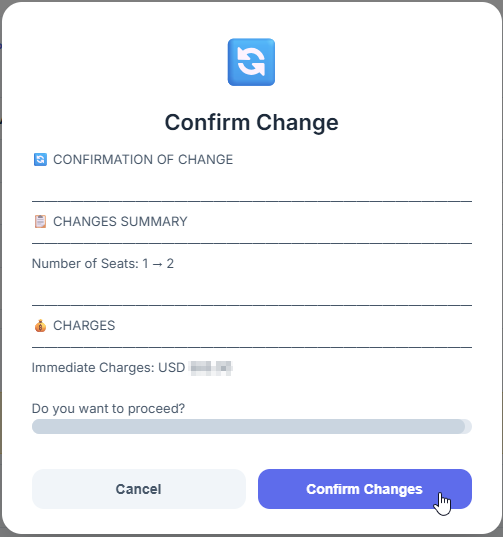](https://learninghub.primer-e.com/uploads/images/gallery/2026-05/09-confirm-changes-2.png)
Click '**Confirm Changes**' to make the change.
Upon successful completion of the above steps, you will receive an email confirming the change(s) in the number of seats for your subscription plan. Your licence key will remain the same, but post-payment it will reflect this change in your entitlements right away, permitting you to install and activate your software on more devices, in accordance with the number of seats you have chosen to purchase for your subscription.
### Decrease the number of seats
You cannot decrease the number of seats directly in the customer portal. You will need to contact us at ***primer@primer-e.com*** and tell us what you'd like to do and we will be happy to help. When the change has been made, you will receive an email confirming that your request has been documented and that ***this change will be implemented upon renewal of your subscription***. Your invoice/payment due at that time will reflect this change.
Note that:
- Your current licence key will remain the same.
- You will still have access to the full number of seats associated with your current plan until the end of your current subscription period.
# Change/update your card details
If you have paid for your initial subscription *via* our website using credit or debit card, then that card's details can be kept in the system as the payment method associated with your subscription, and used for future renewals. You can change/update the details of the card (e.g., to alter the expiry date) as follows.
1. On the 'Home' page in the customer portal, looks on the right-hand side of the section entitled 'My Details', and click '**View More**'
[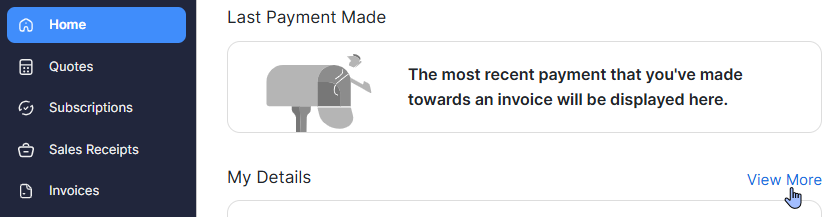](https://learninghub.primer-e.com/uploads/images/gallery/2026-02/43-view-more.png)
2. You will see all of the cards currently held in your account in the customer portal. Click on the small blue cog ([](https://learninghub.primer-e.com/uploads/images/gallery/2026-02/44-small-blue-cog.png)) located to the right of the card whose details you wish to alter.
[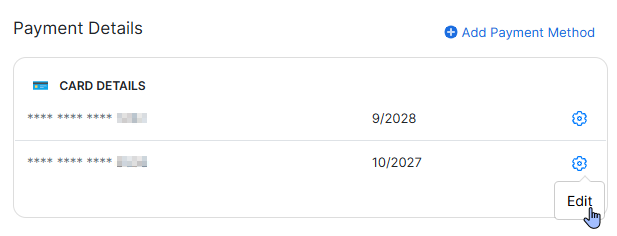](https://learninghub.primer-e.com/uploads/images/gallery/2026-02/45-edit-card-details.png)
3. In the form that pops up, edit the card details with up-to-date information, as required, and click '**Save**'.
[](https://learninghub.primer-e.com/uploads/images/gallery/2026-02/46-save-button.png)
Your card details will then be up to date.
# Add a payment method
You can add one or more payment methods (debit or credit cards) to your account in the customer portal. Follow the instructions below to add a payment method.
1. In the [customer portal](https://subscriptions.primer-e.com/portal/primere), make sure you are on the 'Home' page:
[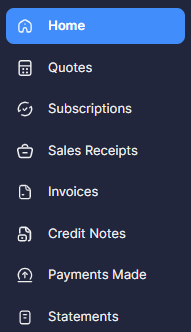](https://learninghub.primer-e.com/uploads/images/gallery/2026-02/38-client-portal-home-page.png)
2. In the section entitled 'My Details' (located at the bottom left of the 'Home' page), you will be able to see all cards currently held in the system for you. Under these details, click on '**Add Payment Method**'.
[](https://learninghub.primer-e.com/uploads/images/gallery/2026-02/39-add-payment-method.png)
3. Fill in the details of the card you want to add and click the button to '**Update Payment Method**'.
[](https://learninghub.primer-e.com/uploads/images/gallery/2026-02/40-update-payment-method.png)
Note that simply adding a card to the customer portal will not automatically associate it with (any of) your current subscription(s). However, once the card has been added to your account in the portal, you can then easily [change the card associated with a particular subscription](https://learninghub.primer-e.com/link/1130).
# Change the card associated with a subscription
First, ensure the card you want to associate with your subscription [has been added](https://learninghub.primer-e.com/link/1129) to your account in the [customer portal](https://subscriptions.primer-e.com/portal/primere). Then, to change the card associated with a paticular subscription, follow the steps below.
1. Click on '**Subscriptions**' (listed in the left-hand panel in the [customer portal](https://subscriptions.primer-e.com/portal/primere)).
[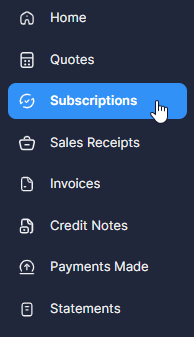](https://learninghub.primer-e.com/uploads/images/gallery/2026-02/21-subscriptions-menu-item.png)
2. Click on the name (in blue) of the specific subscription item ('**PRIMER Software**') for which you wish to change the card.
[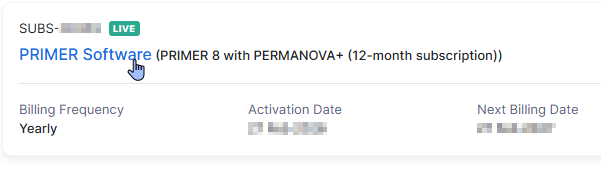](https://learninghub.primer-e.com/uploads/images/gallery/2026-02/51-choose-subscription-blue.png)
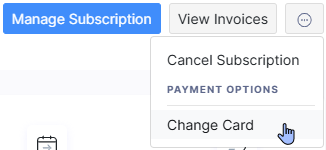
3. Click the 3 dots at the top right-hand side of the page, then click '**Change Card**'.
[](https://learninghub.primer-e.com/uploads/images/gallery/2026-02/37-change-card.png)
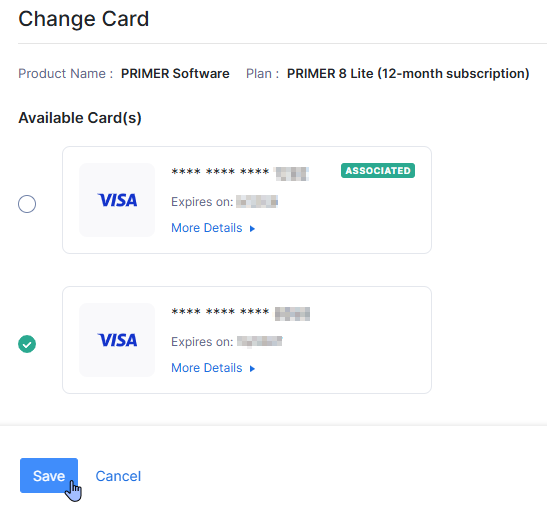
4. Put a tick next to the card you want to associate with this particular subscription for renewal payments, then click '**Save**'.
[](https://learninghub.primer-e.com/uploads/images/gallery/2026-02/41-choose-different-card-for-payment.png)
Once you have associated a card with a subscription, the word 'Associated' (in green) will appear next to that card's details to indicate this:
[](https://learninghub.primer-e.com/uploads/images/gallery/2026-02/42-associated.png).
# Renew your subscription
When it is time to renew your subscription, you will receive:
- a renewal reminder by email, including an invoice for payment, **35 days** prior to the end of your subscription period; and
- a second renewal reminder by email **10 days** prior to the end of your subscription period.
Your subscription will be renewed upon payment of our invoice.
If you have paid for your initial subscription *via* our website using a credit or debit card, your card details have been retained by our system and associated with your subscription for auto-payment at the time of renewal. You can see the [card associated with your subscription](https://learninghub.primer-e.com/link/1130) in the [customer portal](https://subscriptions.primer-e.com/portal/primere). If your card has expired, then you will need to [update your card details](https://learninghub.primer-e.com/link/1128#bkmrk-if-you-have-paid-for). You can review our [Privacy Policy](https://www.primer-e.com/privacy-policy) for details regarding our use of any information you provide to us.
If you have paid for your initial subscription *via* a link on your invoice and chose not to associate your card details, or you did not paid by card, but would now like to pay for your renewal using a credit or debit card, you can [add a credit/debit card payment method](https://learninghub.primer-e.com/link/1129) in the customer portal. You will then need to [associate that card with your subscription](https://learninghub.primer-e.com/link/1130). Once a card is associated with your subscription, it will then be used to renew your subscription automatically at the time of renewal.
You can alternatively pay for your renewal invoice using a direct bank transfer, using the details specified on the invoice.
Provided payment of the invoice for renewal is made prior to the end of your current subscription period, then your subscription plan will be renewed. Your licence key will remain the same and there will be no need to re-install or re-authenticate the software upon renewal. Please refer to our [EULA](https://www.primer-e.com/licence-agreement) for further details.
# Cancel your subscription
You can cancel your subscription through the [customer portal](https://subscriptions.primer-e.com/portal/primere), or by contacting us directly *via* email at ***primer@primer-e.com***. You will still have access to the software until the end of the current subscription period. Your subscription will not be renewed, but instead will be cancelled at the end of your current subscription period in accordance with your request.
To cancel your subscription, first sign in to the [customer portal](https://subscriptions.primer-e.com/portal/primere), then follow these steps:
1. Click on '**Subscriptions**' (listed in the left-hand panel).
[](https://learninghub.primer-e.com/uploads/images/gallery/2026-02/21-subscriptions-menu-item.png)
You will see a list of all your current ('live') subscriptions.
2. Click on the name of the specific subscription item you wish to cancel ('PRIMER Software').
[](https://learninghub.primer-e.com/uploads/images/gallery/2026-02/51-choose-subscription-blue.png)
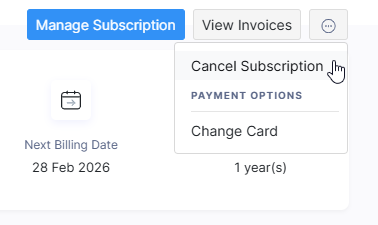
3. On the next screen, just to the right of the button with the words '**View Invoices**', you will see a button with three dots surrounded by a circle: [](https://learninghub.primer-e.com/uploads/images/gallery/2026-02/30-button-with-three-dots.png).
Click on that button, then click '**Cancel Subscription**':
[](https://learninghub.primer-e.com/uploads/images/gallery/2026-02/31-cancel-menu-item.png)
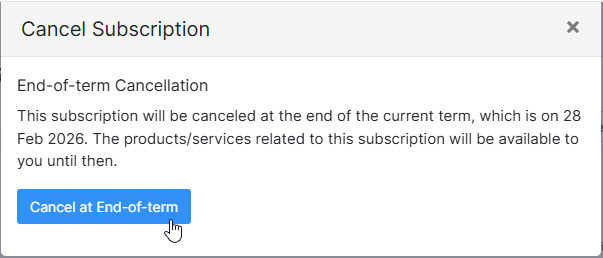
4. Next, click the button '**Cancel at End-of-term**', as shown below:
[](https://learninghub.primer-e.com/uploads/images/gallery/2026-02/32-cancel-subscription-dialog.png)
Note that ***you will still have access to the software until the end of the current subscription period.*** The subscription will only be cancelled at the end of the subscription term.
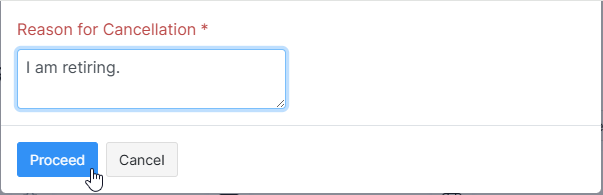
5. Finally, please provide a reason for your cancellation and click '**Proceed**', e.g.,
[](https://learninghub.primer-e.com/uploads/images/gallery/2026-02/33-reason-for-cancellation.png)
You will see a confirmation ('*Your subscription has been cancelled.*'). The status of your cancelled subscription will now show in the portal as '*non-renewing*' ([](https://learninghub.primer-e.com/uploads/images/gallery/2026-02/34-non-renewing.png)), instead of '*live*' ([](https://learninghub.primer-e.com/uploads/images/gallery/2026-02/35-live.png)).
#### If you change your mind
If you change your mind and would like to turn your subscription back on (so that it renews at the end of the current subscription period), just get in touch with us directly at ***primer@primer-e.com***.