# Expressions combining variables
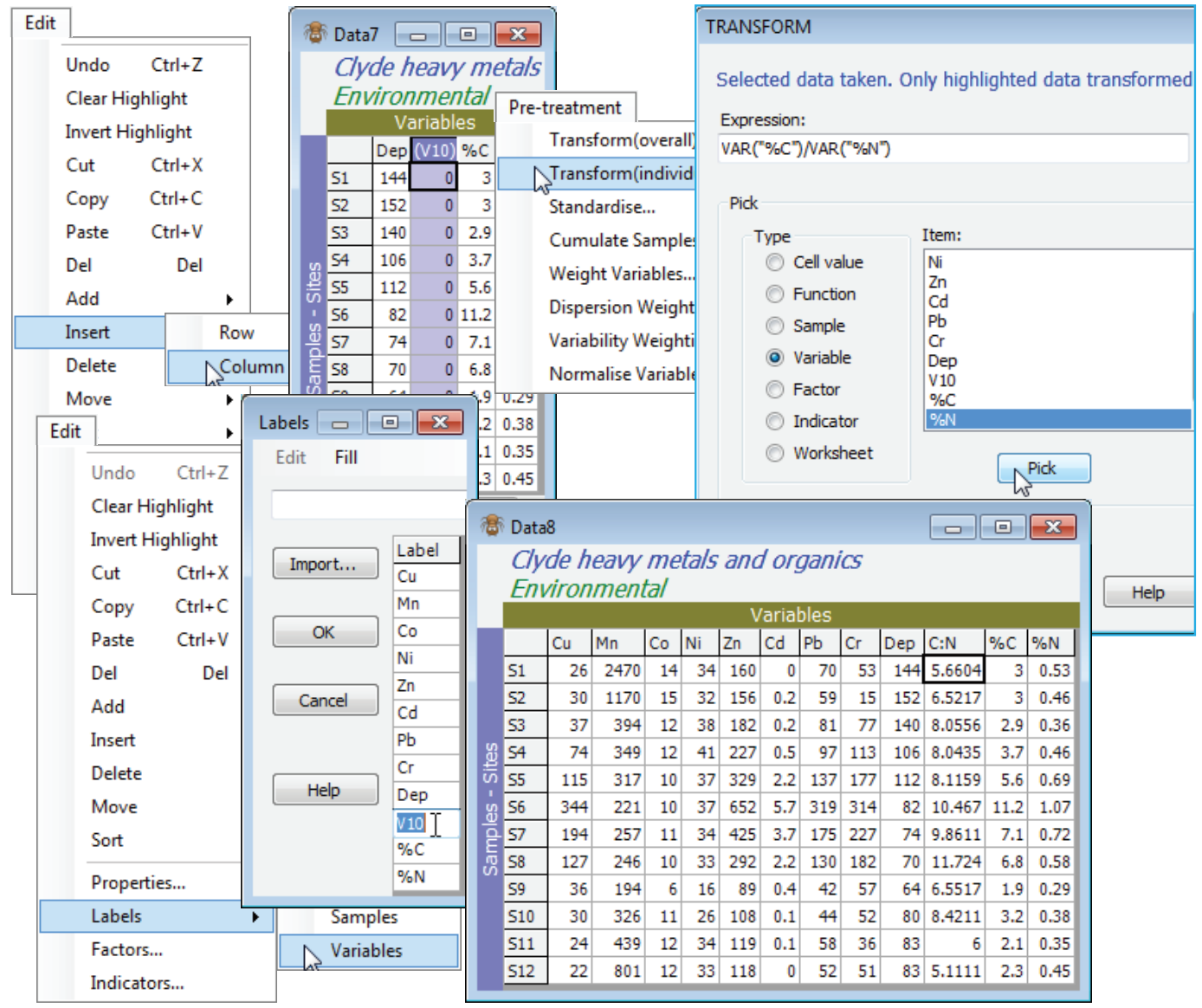
For an example of an Expression combining two (or more) variables, use the Clyde environmental sheet but copy it (**Tools>Duplicate**), which is always a good idea when experimenting! The aim is to create a new variable (column) which is the C:N ratio, so first **Edit>Insert>Column**, which will be placed to the left of the current cursor position – here this might logically be on the %C column. \[Incidentally, remember that the new **Edit>Undo** will step back any **Edit** operations like this which change the current data matrix, rather than creating a new sheet (where a new sheet is created it can always be deleted if incorrect, and the process repeated). And note that **Edit>Undo** is local to the currently active matrix, so will undo the last such operation on this sheet, irrespective of whether similar operations have been performed since, on other sheets in the workspace – they will not be wound back by **Edit>Undo** if their sheet is not the active one\]. The new column is labelled (V10) because of its position in the matrix, and the calculation we do to create the C:N ratio is to be put in this column, so it needs to be highlighted. Take **Pre-treatment>Transform(individual)** and delete the V from the Expression box (that refers only to values in the new column, which we shall not be using – they are all zero of course). Then, under Pick, take (Type•Variable) & (Item: %C)>**Pick**) and follow by (Type•Variable) & (Item: %N)>**Pick**), which creates the two variables we need in the Expression box. Manually insert the divide symbol (/) between them, to give the (Expression: VAR(“%C”)/VAR(“%N”)), and **OK** now gives a new sheet with the added C:N ratio variable V10. (Even if you chose to tick the (✓Rename variables) box, the new name will still be clumsy and it would be better to change it to C:N using **Edit>Labels>Variables)**.
[](https://learninghub.primer-e.com/uploads/images/gallery/2024-09/screenshotpage218a.png)
An alternative, e.g. if you just intend to take this new variable back into the earlier transformed sheet, is not to insert a new blank column, instead just highlighting the %C column (which will now be V in the Expression box), and **Pre-treatment>Transform(individual)** with (Expression: V/VAR(“%N”)). In the new sheet, this will have overwritten the %C row with the C:N ratio. Either way, you can now put the new C:N variable back into the transformed sheet simply by highlighting it, then **Select>Highlighted** and **Tools>Merge** it with the transformed sheet, taking the defaults.