# Selecting & deselecting highlights
When all except columns A9, B3 and B4 are highlighted, take **Select>Highlighted**. Alternatively, right click when over the data and a drop-down menu will appear, of operations from the **Edit** and **Select** menus, including **Select highlighted**. The matrix entries now have a different (turquoise) background indicating that you are operating with a selection – a new datasheet window is not created and the non-selected data is not lost. The operation can be simply reversed by deselecting the highlight with **Select>All** – the highlights are retained so it is easy to change some of them (or reverse them with **Edit>Invert Highlight**, see example above) and reselect.
[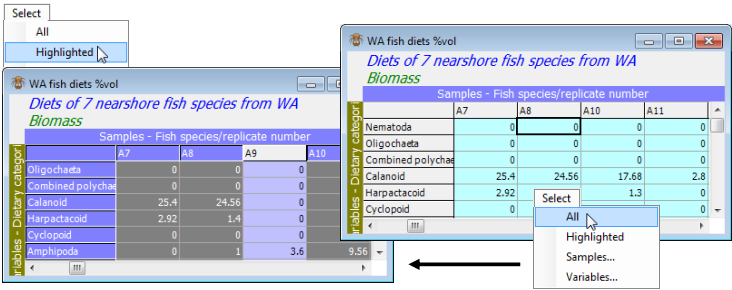](https://learninghub.primer-e.com/uploads/images/gallery/2024-05/screenshotpage47a.png)