# Selecting variables & resemblance
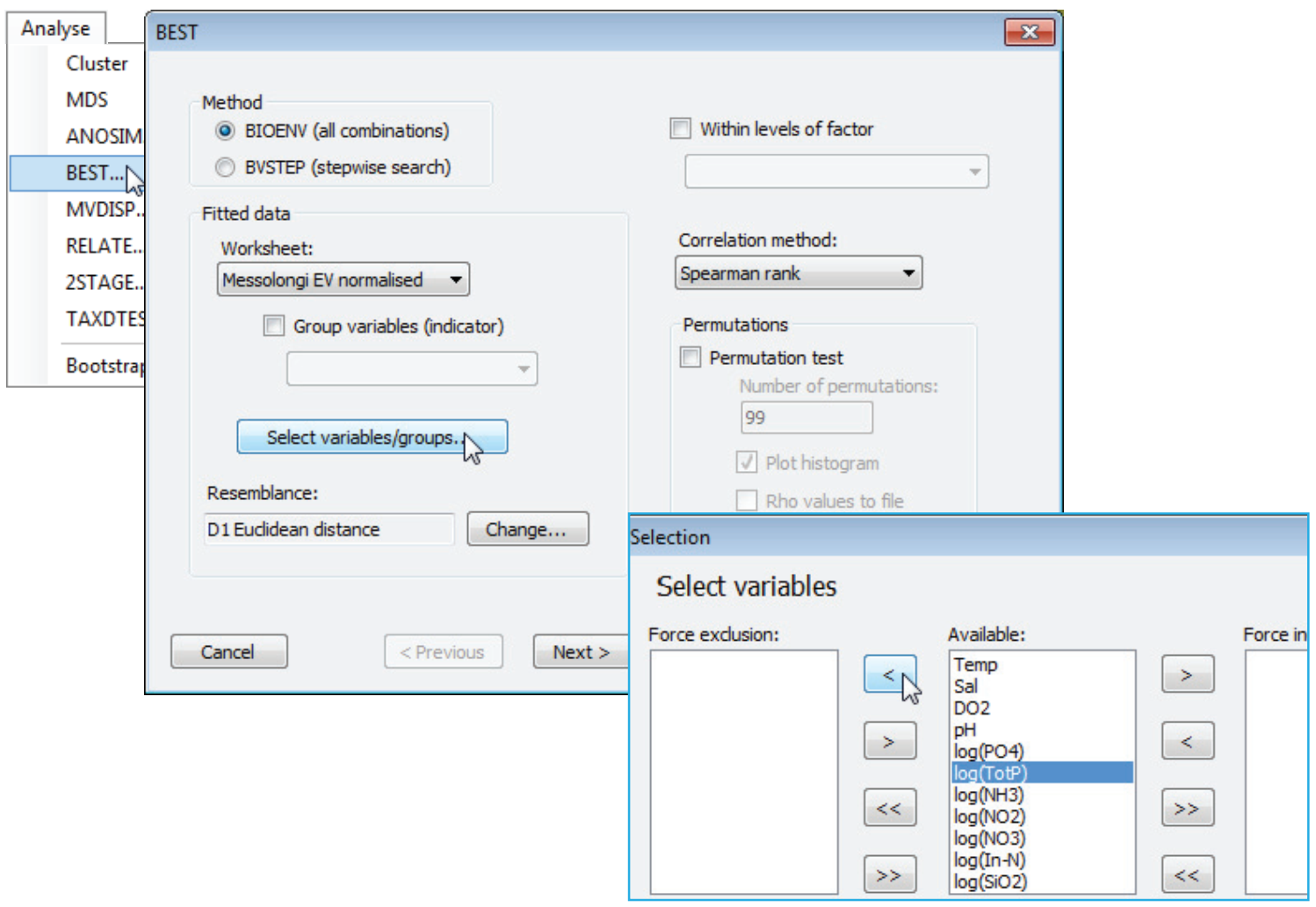
After the (✓Group variables(indicator)) check box, the next option is a **Select variables/groups** button, which gives the usual type of selection dialog with three panes. The default is for all the variables – for which read ‘groups of variables’ if the previous check box is ticked – present in the (Fitted data worksheet:) to be displayed in the (Available:) pane. These will then be picked and dropped in all combinations. Variables that are moved to the (Force exclusion:) pane will never enter any of the combinations considered, e.g. you might choose to exclude a variable which is very highly correlated with another in the list. Those variables in the (Force inclusion:) pane will be included in every combination, e.g. you might know that a particular environmental variable is causal for the assemblage, and therefore always want to include it when considering whether adding other variables improves the ‘explanation’. The choice of (Resemblance:) coefficient for the explanatory variables then follows. The default for this is determined by the datasheet type – often environmental, and thus Euclidean distance – but can be altered to any of the numerous measures which PRIMER offers, through the **Change** button. Importantly, for environmental variables on different scales, the supplied explanatory variables worksheet should be in its normalised form before **Analyse>BEST** is run – there is no option within the dialog box to add this pre-treatment step before selection of Euclidean (or other) distance measure.
[](https://learninghub.primer-e.com/uploads/images/gallery/2024-10/screenshotpage232a.png)