
Overview
To get started using PRIMER 8, you will need to follow two essential steps:
- first, install the software on your machine;
- second, activate the software, using your purchased licence key.
These two steps are outlined in detail below.
Install PRIMER 8
When you purchase a subscription, a direct link to download the PRIMER 8 software installer (an executable file called 'PRIMER8Setup.exe') will be sent to you via email, along with your licence key. Alternatively, you can go to our download page and download it from there. Note that the same installer file is used for all PRIMER 8 subscription plans.
Important note: You will need to have administrator permissions on your user account in Windows to install PRIMER 8 software on your computer. If you do not have these permissions, please contact your IT team who should be able to assist you with the installation.
- Double-click on the executable file to start the installation process.
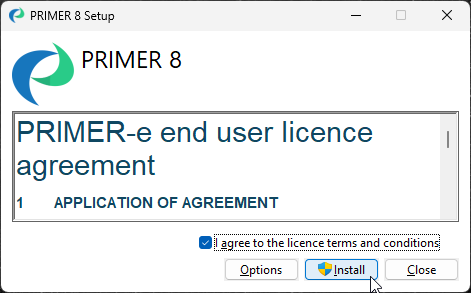
- A 'PRIMER 8 Setup' window will appear. Please read the 'PRIMER-e end user licence agreement' (EULA). If you agree to the terms and conditions of this EULA, click on the tick-box $\checkmark$'I agree to the licence terms and conditions' and then click 'Install'.
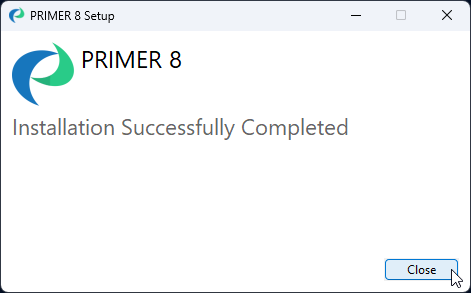
- Follow the prompts and once the installation has completed successfully, click 'Close'.
Once the software is installed, you can launch the PRIMER 8 software and it will run in trial mode for free for 14 days. You will need to activate your licence key in order to enable full functionality of the software in accordance with your purchased subscription plan.
Activate PRIMER 8
Note: The machine on which you are activating PRIMER must be connected to the internet and able to talk to our authentication server.
- Launch PRIMER 8 (e.g., by double-clicking on the PRIMER 8 icon on your desktop):

- Click on the 'Authenticate Licence' button in the 'Welcome to PRIMER 8' dialog box.
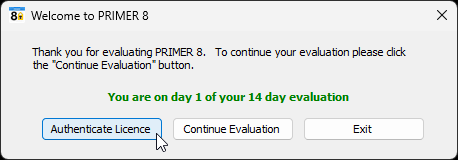
(Note: If you have already exhausted your 14-day trial, a message may appear to advise you that 'Your evaluation period has expired'. If that happens, simply click on 'Authenticate Licence' to carry on with the instructions to activate your licence.)
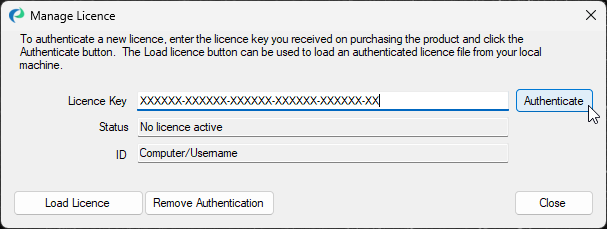
- In the 'Manage Licence' dialog window, copy and paste your 37-character licence key code into the 'Licence Key' box and click 'Authenticate'.
PRIMER 8 will now operate with all of the entitlements and functionality associated with your subscription plan.
For more details regarding installing, activating, and trouble-shooting any issues that could arise here, see Managing your PRIMER 8 installation.
¶You may explore the features of PRIMER 8 in trial mode for free for a period of 14 days without purchasing and activating the software using a licence key, but not all features will be fully functional.