
Activate PRIMER
Note: The machine on which you are activating PRIMER must be connected to the internet and able to talk to our authentication server.
-
Launch PRIMER 8.
-
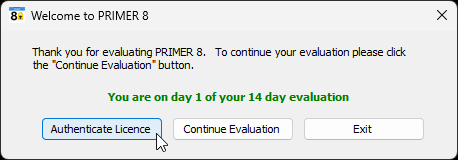
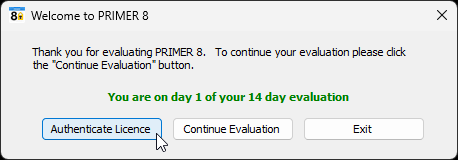
Click on the 'Authenticate Licence' button in the 'Welcome to PRIMER 8' dialog box. (Note: If you have already exhausted your 14-day trial, a message may appear to advise you that 'Your evaluation period has expired'. If that happens, simply click on 'Authenticate Licence' to carry on with the instructions to activate your licence.)
-
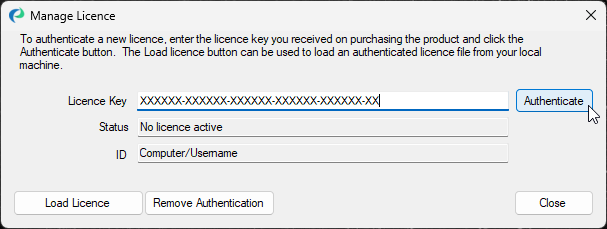
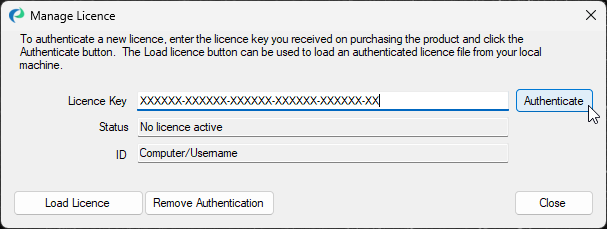
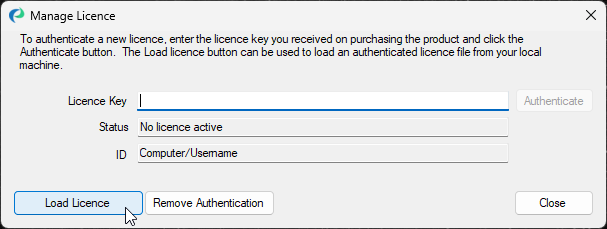
In the 'Manage Licence' dialog window, copy and paste your 37-character licence key code into the 'Licence Key' box and click 'Authenticate'.
PRIMER 8 will now operate with all of the entitlements and functionality associated with your subscription plan.
Offline activation
Sometimes a device cannot talk to our authentication server. This can happen if the device doesn't have an internet connection, or if there are strict firewall policies in place. If your device cannot talk to our authentication server over the internet, follow the steps below:
Note: If you have a floating licence, you cannot use this method to activate your software as floating licences do not use offline licence files. If you are an IT administrator looking to configure floating licences for a large number of end-users, see the section entitled 'Floating licence configuration guide'.
-
Launch PRIMER 8.
-
Click on the 'Authenticate Licence' button in the 'Welcome to PRIMER 8' dialog box.
-
In the 'Manage Licence' dialog window, copy and paste your 37-character licence key code into the 'Licence Key' box and click 'Authenticate'.
-
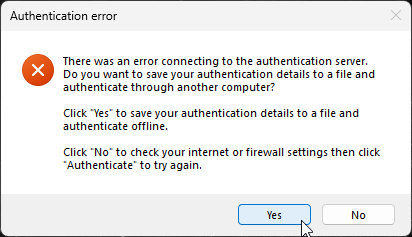
After you have clicked Authenticate, PRIMER will try to authenticate the licence details with our authentication server, and when it cannot, it will offer you the chance to save your authentication details to a file. Click 'Yes' and save those details to a file.
-
Email the authentication details file to tech@primer-e.com. We will manually create an offline licence file for you and send it back to you.
-
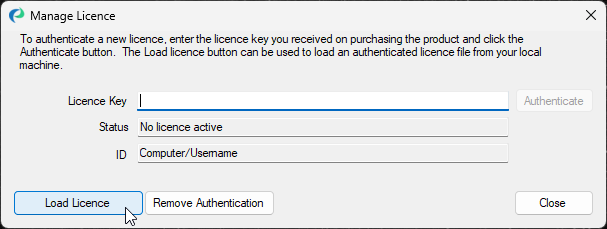
Once you have received your offline licence file from us, open PRIMER and select 'Authenticate Licence' again to get the 'Manage Licence' dialog. Click 'Load Licence' and select the file that you received from us.
-
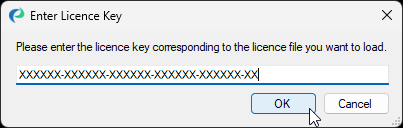
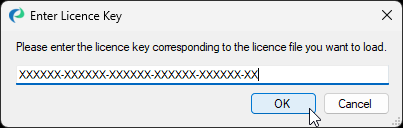
Once you have selected the offline licence file in the file browser, you will be prompted for your licence key. Enter the licence key that you used when you tried to authenticate in step 3, and click 'OK'.
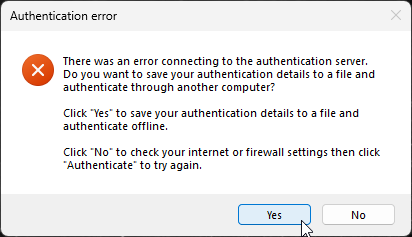
PRIMER will load your offline licence file and you should be able to access PRIMER normally.
Refresh your licence file
If you have upgraded your subscription, for instance from PRIMER 8 Lite to PRIMER 8 with PERMANOVA+ but you still cannot access the functionality of items in the PERMANOVA+ menu, you may need to refresh your offline licence file. This can be done by re-authenticating with your licence key. To do that:
If you have an internet connection and your machine can talk to our authentication server, re-authenticating your licence in this way will download a new offline licence file to your machine, thus enabling all of the entitlements (such as the PERMANOVA+ routines) associated with your licence. If your machine cannot talk to our authentication server, you will have to send us your authentication details as outlined in the section entitled 'Offline activation'.