
Update the software
PRIMER 8 receives regular updates throughout your subscription period. If your machine is connected to the internet, PRIMER will periodically check for updates and offer you the option to download and install the latest version.
Check for updates manually
If you have been offline, have not used the software for a while, or have seen that you're not using the latest version, you can quickly and easily manually check for updates and install the latest version. Just open the PRIMER 8 software, and click Help > Check for Updates.
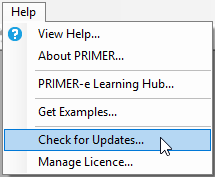
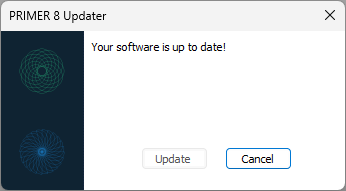
If an update is available, it will download and install automatically - no need for you to do anything else! If you are already using the latest version of PRIMER 8, then you will see the following message:
Check your version
If you want to check (or double-check) the version of PRIMER 8 that you are currently running on your machine, click Help > About PRIMER
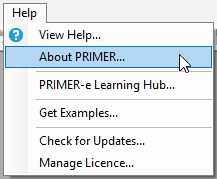
A splash screen will show the version you are running:
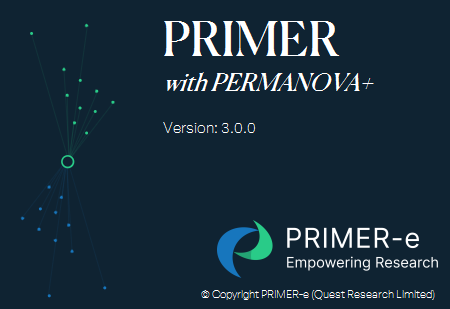
Compare the version number you see on the splashscreen against the version number of the most up-to-date version listed on our changelog to check that you're using the latest version.
View our Changelog
We have a changelog on our website, showing details of what has been changed with each update to a new (numbered) version of PRIMER 8 that is released by our developer team. The changelog effectively shows a running history of changes made over time to the PRIMER 8 software since its initial release.
Disable automatic checks
If you don't want PRIMER to check for updates automatically, you can disable this feature by clicking Tools > Options > Updates.