
Install PRIMER
Downloading the installer
If you have purchased a subscription, a direct link to download the PRIMER 8 software installer (an executable file called 'PRIMER8Setup.exe') will be sent to you via email, along with your licence key. Alternatively, you can go to our download page and download it from there.¶ Note that the same installer file is used for all PRIMER 8 subscription plans. Double-click on the installer file and follow the prompts.
Running the installer
Important note: You will need to have administrator permissions on your user account in Windows to install PRIMER 8 software on your computer. If you do not have these permissions, please contact your IT team who should be able to assist you with the installation.
-
Double-click on the downloaded installation file 'PRIMER8Setup.exe' to start the installation process.
-
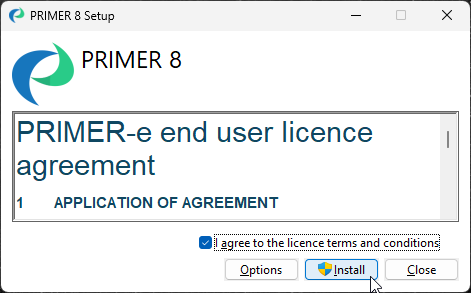
A 'PRIMER 8 Setup' window will appear. Please read the 'PRIMER-e end user licence agreement' (EULA). If you agree to the terms and conditions of this EULA, click on the tick-box $\checkmark$'I agree to the licence terms and conditions' and then click 'Install'.
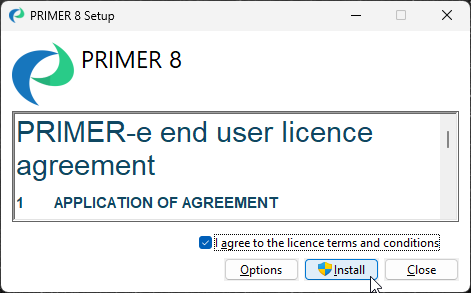
-
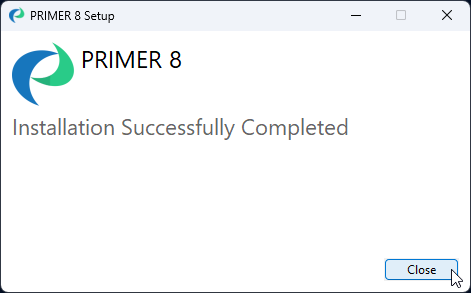
Follow the prompts and once the installation has completed successfully, click 'Close'.
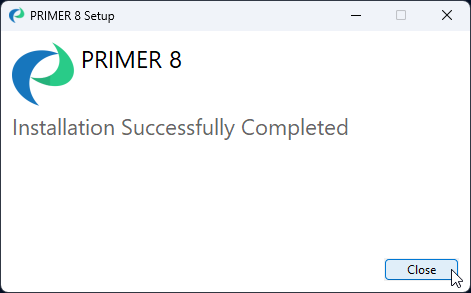
Once the software is installed, you can launch the PRIMER 8 software and it will run in trial mode for free for 14 days. You will need to activate your licence key in order to enable full functionality of the software in accordance with your purchased subscription plan.
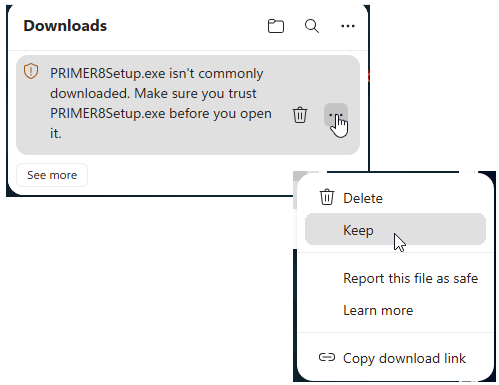
¶ If you are using Microsoft Edge as your browser, then you might see the following message when you try to download the executable setup file: 'PRIMER8Setup.exe isn't commonly downloaded. Make sure you trust PRIMER8Setup.exe before you open it.'
If this happens to you, then just click the three dots immediately to the right of the 'trash can' icon and choose 'Keep', like so:
Next, a larger window will open that says: 'Make sure you trust PRIMER8Setup.exe before you open it'. In this window, you can click on the black 'Delete' button, and you will see the option to click 'Keep anyway', as shown below.
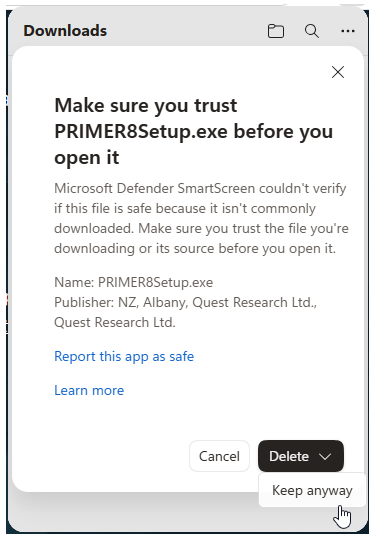
After you click 'Keep anyway', then the PRIMER8Setup.exe file will proceed to download, and you can continue with the installation process, as outlined above.