
Change the number of seats
Need more seats?
You can increase the number of seats:
- immediately via the customer portal, or
- at the end of your current term, by contacting us at primer@primer-e.com.
You can only decrease the number of seats at the end of your subscription's current term, i.e., at renewal. If you wish to decrease the number of seats, then get in touch with us directly at primer@primer-e.com and we will be happy to help.
Increase the number of seats (with immediate effect)
- Sign in to PRIMER-e's customer portal.
In the portal, you will be able to increase the number of seats. Once you make your choice, the credit available from your current plan will be applied toward your new plan having more seats, and you will be issued with an invoice for the remainder. You can pay the invoice either immediately via a credit/debit card associated with your subscription, or via any payment method shown on our invoice. (Note: if you have a card associated with your subscription, then the payment will be made on this card automatically when you confirm the change.)
Once your invoice has been paid, the change to your subscription will take effect immediately and an email will be sent to you confirming this. Your subscription number, licence key and serial number remain the same, and there is no need to uninstall/re-install the software itself. The software will be able to be installed and licence activated on the additional number of machines (seats) you have purchased.
- Click on 'Manage Subscription' (listed in the left-hand panel).
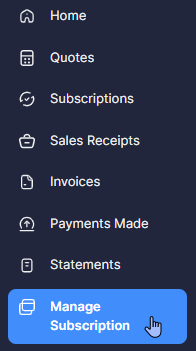
(You may need to enter your email address and click 'Continue' at this point).
- Click on the name (shown in lavender) of the specific subscription you wish to change (e.g., 'SUBS-00418'). This will take you to that particular subscription on the page.
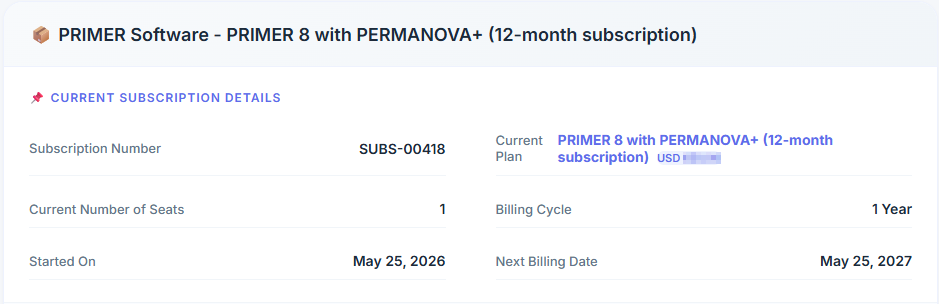
Under this information, you will see a section labeled 'Change your Number of Seats to:' with a drop-down menu. Click on this and select the number of seats you want to change to. For example, we might choose to go from 1 to 2 seats, as shown below:
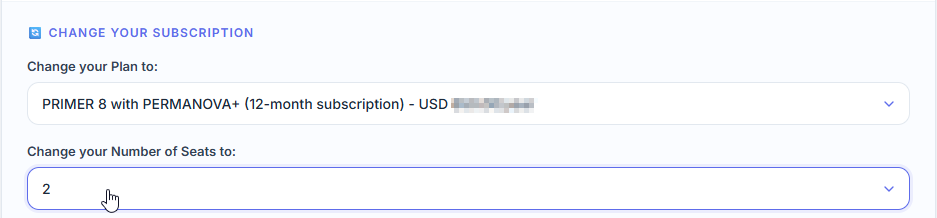
- If you have a coupon, enter the coupon code where it says 'Add Coupon' and click 'Apply'. *(Note: if you have an existing coupon that is already associated with your subscription and it can be applied in this situation, then it will automatically show up here, and you can choose whether or not to apply it.)

- Check the details associated with this change, including the additional payment required.
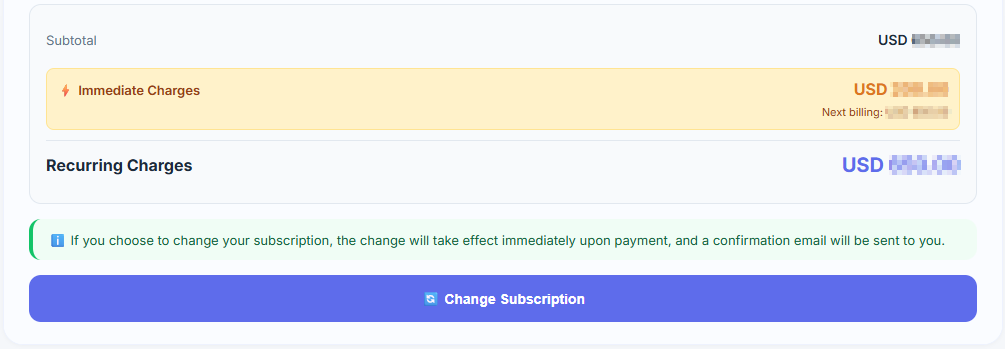
Note that:
- To make your changes you will have to pay for the differential amount. You will be sent an invoice directly.
- Auto-charge will be enabled for this subscription if you use a payment method that supports recurring payments (i.e., if you have a debit or credit card associated with this subscription).
If all the details showing are correct and you are happy to proceed (making sure to include your coupon code, if any), then click 'Change Subscription' at the bottom of the window.
- Next, a 'Confirm Change' window will be shown to you, including a summary of the change(s) requested and details of the immediate charges.
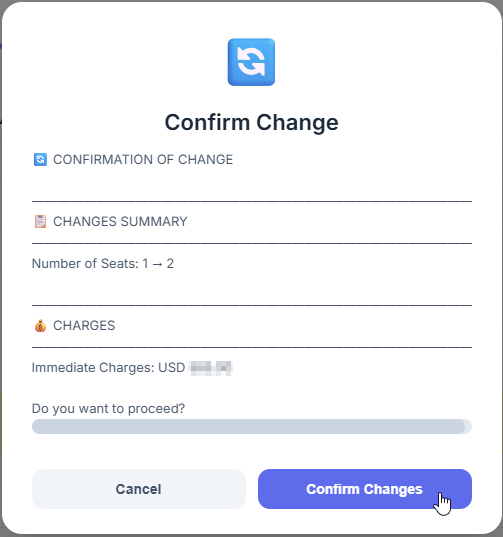
Click 'Confirm Changes' to make the change.
Upon successful completion of the above steps, you will receive an email confirming the change(s) in the number of seats for your subscription plan. Your licence key will remain the same, but post-payment it will reflect this change in your entitlements right away, permitting you to install and activate your software on more devices, in accordance with the number of seats you have chosen to purchase for your subscription.
Decrease the number of seats
You cannot decrease the number of seats directly in the customer portal. You will need to contact us at primer@primer-e.com and tell us what you'd like to do and we will be happy to help. When the change has been made, you will receive an email confirming that your request has been documented and that this change will be implemented upon renewal of your subscription. Your invoice/payment due at that time will reflect this change.
Note that:
- Your current licence key will remain the same.
- You will still have access to the full number of seats associated with your current plan until the end of your current subscription period.