
Change the card associated with a subscription
First, ensure the card you want to associate with your subscription has been added to your account in the customer portal. Then, to change the card associated with a paticular subscription, follow the steps below.
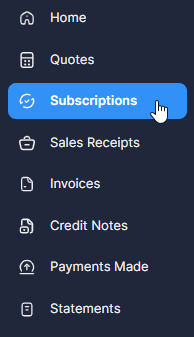
- Click on 'Subscriptions' (listed in the left-hand panel in the customer portal).
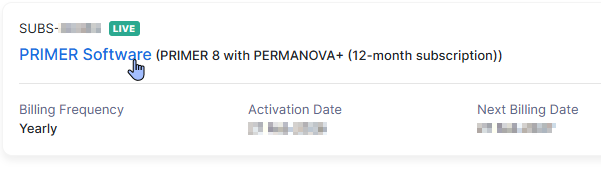
- Click on the name (in blue) of the specific subscription item ('PRIMER Software') for which you wish to change the card.
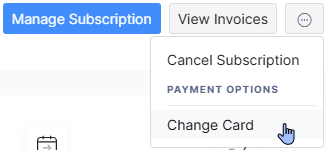
- Click the 3 dots at the top right-hand side of the page, then click 'Change Card'.
- Put a tick next to the card you want to associate with this particular subscription for renewal payments, then click 'Save'.
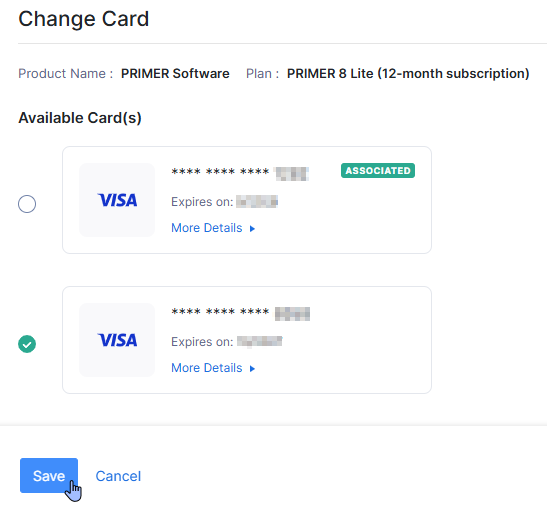
Once you have associated a card with a subscription, the word 'Associated' (in green) will appear next to that card's details to indicate this:
 .
.