
Deactivate & reactivate PRIMER
If you need to move PRIMER 8 to a new machine, switch to a different licence key, or switch to a new subscription plan, you'll first need to deactivate your current installation. Deactivating frees up a seat on your licence, allowing you to activate PRIMER on a new machine or under a new licence or subscription plan.
- If you want to deactivate and reactivate on the same machine, see the section entitled 'Deactivate and reactivate'.
- If you want to move PRIMER to another machine, see the section entitled 'Uninstall and reinstall'.
- If you need more detailed help, see the section entitled 'In-depth walkthroughs'.
Deactivate and reactivate
This process applies if you want to deactivate and reactivate on the same machine. For example, if there has been a change to your subscription plan, you may need to re-authenticate the software for the change to take effect.
-
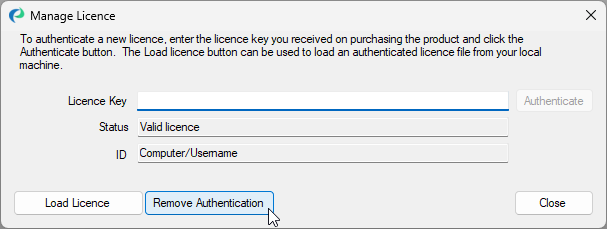
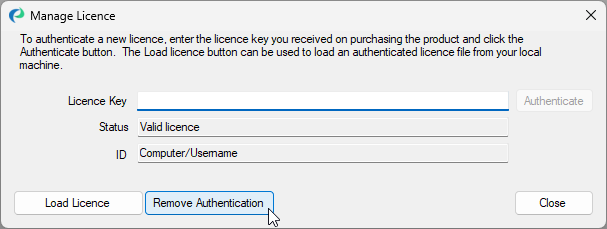
Open PRIMER 8 and click Help > Manage Licence... > Remove Authentication.
-
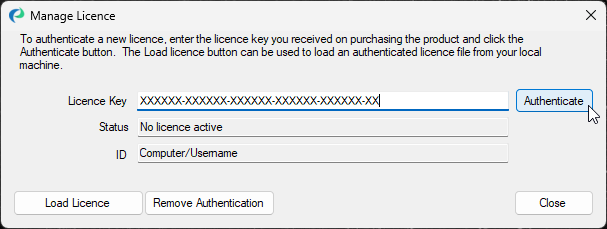
Copy and paste your licence key into the text box labelled 'Licence Key'.
-
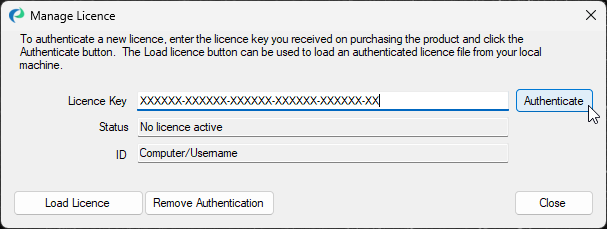
Click 'Authenticate'.
Uninstall and reinstall
This process is necessary if you're moving PRIMER from one machine to another.
-
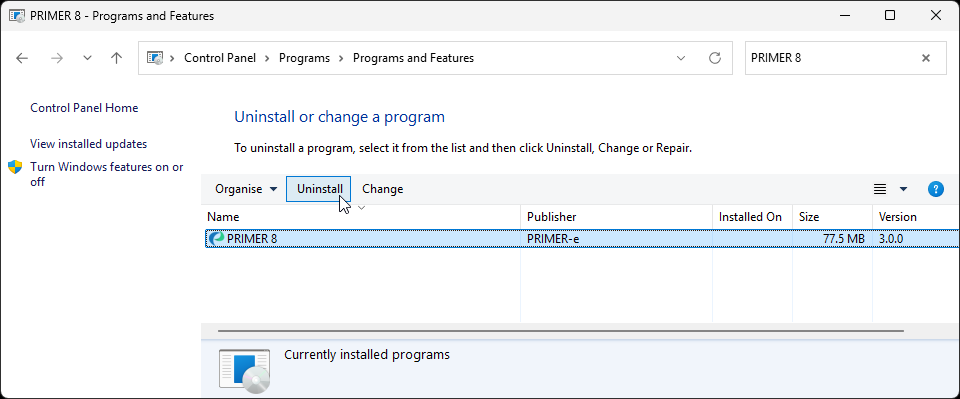
Open the 'Control Panel' on your computer (e.g., click the Start menu or press the Windows key and type 'Control Panel')
-
Select 'PRIMER 8' from the list of programs.
-
Click 'Uninstall'.
-
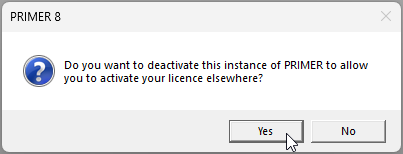
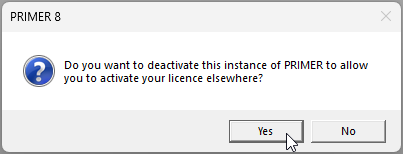
Follow the prompts to uninstall. In response to the question: 'Do you want to deactivate this instance of PRIMER to allow you to activate your licence elsewhere?', click 'Yes'.
-
Download and run the PRIMER 8 installer ('PRIMER8Setup.exe') on your new machine.
-
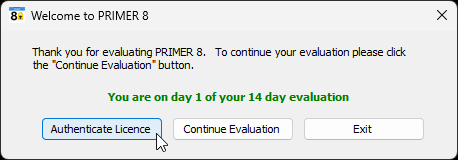
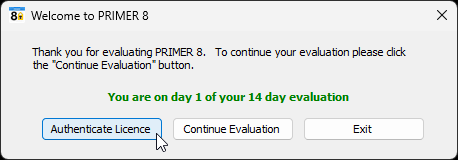
Open PRIMER. In the 'Welcome to PRIMER 8' dialog, click on 'Authenticate Licence'.
-
Enter your licence key into the box labelled 'Licence Key'.
-
Click 'Authenticate'.
In-depth walkthroughs
For more information on these processes, see the guides below: