
3.3 Example: Violin plot of kelp holdfast volumes
Anderson et al. (2005) studied organisms colonising holdfasts of the kelp, Ecklonia radiata, sampled from four different locations along the northeastern coast of New Zealand. One would expect that invertebrate communities colonising holdfasts (which include a wide range of taxa such as polychaetes, cnidaria, echinoderms, molluscs, crustaceans, etc.) would change over time, as the alga develops and grows larger and larger. The researchers measured the co-variate of volume (in cm3) for each sampled holdfast, using water displacement. Values for this variable, called 'Volume', are contained in the file 'NE_NZ_holdfast_environment.pri', found in the 'NE_NZ_holdfasts' folder in 'Examples_P8'. The factor 'Location' identifies the location along the coast from which each holdfast was collected (with 'B' = Berghan Point, 'H' = Home Point, 'L' = Leigh and 'A' = Hahei).
Our interest here lies in visualising the distributions of sizes of holdfasts from these four different locations.
Create a violin plot
- Bring the 'NE_NZ_holdfast_environment' dataset into PRIMER, click on the column labeled 'Volume', then click Select > Highlighted to focus on just this one variable. Recall that by 'selecting' the single variable (or any other subset of a data sheet in PRIMER), all subsequent actions will be applied only to this subset. A datasheet of subsetted data is shown in blue (see below):
![07.holdfast_volume[i].png](https://learninghub.primer-e.com/uploads/images/gallery/2025-12/07-holdfast-volume-i.png)
- To create the plot, click Plots > Violin Plot...:
![08.holdfast_violin_plot_menu[i].png](https://learninghub.primer-e.com/uploads/images/gallery/2025-12/08-holdfast-violin-plot-menu-i.png)
- In the resulting dialog, ensure that the 'Group factor' is 'Location', and take the defaults for the rest (i.e., just click 'OK').
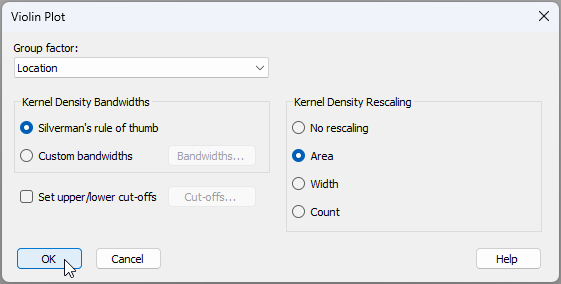
- The resulting violin plot (where the kde bandwidth for each group is estimated separately, using Silverman's rule-of-thumb) is shown below:
![10.holdfast_violin_default_plot[i].png](https://learninghub.primer-e.com/uploads/images/gallery/2025-12/10-holdfast-violin-default-plot-i.png)
Note that, for each group, the median is a horizontal line, and the inter-quartile range is shown by a vertical line with two dots (representing the upper and lower quartiles). In this example, it is clear that the shapes of these estimated densities are very different for the different locations. Home Point, in particular, seems to have the broadest range of holdfast sizes, including some very large holdfasts, and Hahei and Leigh each appear to have a slightly bimodal distribution of sizes.
Tweaks available under 'Graph > Special'
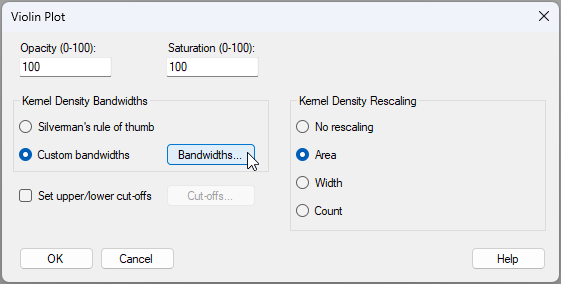
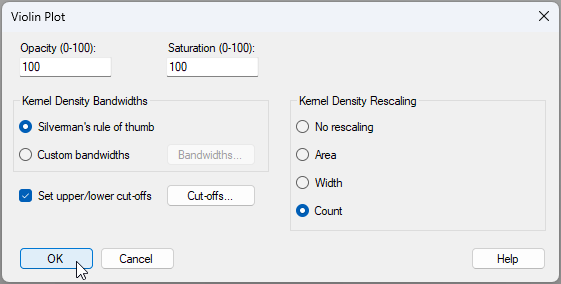
By clicking Graph > Special, you can change the opacity and/or the saturation of the colours used for the violins. You can also change your choice of bandwidth, set upper/lower cutoffs or alter the rescaling (widths) of the violins, as per the original 'Violin Plot' dialog.
Change the bandwidth
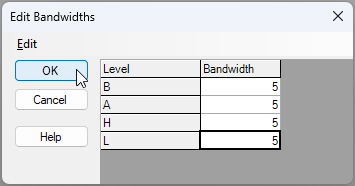
Once you have created a violin plot (e.g., like Graph1 above), you can check out the bandwidths that were used to create it by clicking Graph > Special, choosing '$\bullet$Custom bandwidths' and clicking the 'Bandwidths...' button,  , like so:
For this example, we can see the following individual bandwidths that were used to create the violin for each group (calculated using Silverman's rule, by default):
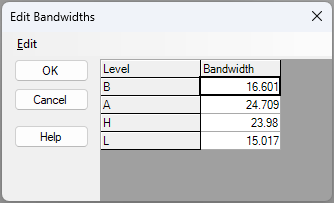
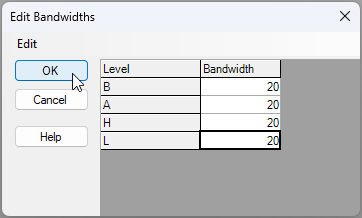
- We could manually apply a single bandwidth to be used for all of the groups. For example, the average of the above four bandwidth values is 20.07. If we therefore manually type in a common bandwidth of $h = 20$ to be used for all of the violins, the resulting plot (shown below) actually looks, in any case, quite a bit like the default:
![12._holdfast_violin_plot[2]h=20[i].png](https://learninghub.primer-e.com/uploads/images/gallery/2025-12/12-holdfast-violin-plot2-h20-i.png)
- To more dramatically demonstrate the effect of bandwidth choice on the resulting plot, let's see what happens when we choose a much smaller bandwidth of (say) $h = 5$ for all of the groups (see below):
![13.holdfast_violin_plot_h=5[i].png](https://learninghub.primer-e.com/uploads/images/gallery/2025-12/13-holdfast-violin-plot-h5-i.png)
The result is far less smooth (much more bumpy!), and clearly the volume values for individual holdfasts each have a much greater importance in the visual outcome here.
Trim the violins
- Volume is a strictly positive continuous quantitative variable, and we might consider that the initial plot we saw was a bit odd, because the y-axis (and some of the violins) delved below zero. Let's set the lower bound to zero and trim the violins accordingly. Go back to the 'NE_NZ_holdfast_environment' dataset where the variable of 'Volume' has already been selected, and click Plots > Violin Plot.... Use Silverman's rule of thumb for the bandwidths, but choose to '$\checkmark$Set upper/lower cut-offs' and click on the 'Cut-offs...' button,
 , then specify a lower cut-off for all groups at 0, like so:

![14.Choose_New_plot_with_cutoffs[i].png](https://learninghub.primer-e.com/uploads/images/gallery/2025-12/14-choose-new-plot-with-cutoffs-i.png)
The resulting graphic (after also changing the y-axis minimum to 0, to match the trim) is shown below ('Graph2'):
![14.violins_with_cutoffs[i].png](https://learninghub.primer-e.com/uploads/images/gallery/2025-12/14-violins-with-cutoffs-i.png)
Rescaling violin widths
- A number of rescaling options (affecting the relative widths of the violins) are also possible. If we change the 'Kernel Density Rescaling' option in the Graph > Special menu to '$\bullet$ Count', you will see that the widths of each group now reflect their relative sample sizes, as shown below:
![15.violins_with_count_widths[i].png](https://learninghub.primer-e.com/uploads/images/gallery/2025-12/15-violins-with-count-widths-i.png)
In this particular example, the sample sizes are equal, so the result is a graphic where the widths are effectively one quarter (1/4) of the original (default) area-based widths. This is because there were 80 holdfasts in total and 20 holdfasts in each of the 4 groups. If, however, there had been different sample sizes, then groups having larger sample sizes would look (proportionately) wider.
Opacity, saturation and colour
You can change the opacity and/or saturation of the colour used for the violins in the Graph > Special menu as well. These options work the same way that they do for a dot plot, or for bubbles super-imposed on an ordination. To change the fundamental colours of the violins, click Graph > Sample Labels & Symbols..., then click the 'Key' button,  .§
.§
§Other aspects of labels and symbols cannot be changed for dotplots and violin plots. These plots share a common structure to boxplots in that essentially only the colours can be changed in the 'Sample Labels & Symbols' menu. Also, these types of plots (box plots, dot plots and violin plots) do not plot numerical values on the X-axis, instead they plot factor levels. Thus, changing the X-axis scale will not affect the way the axis looks.