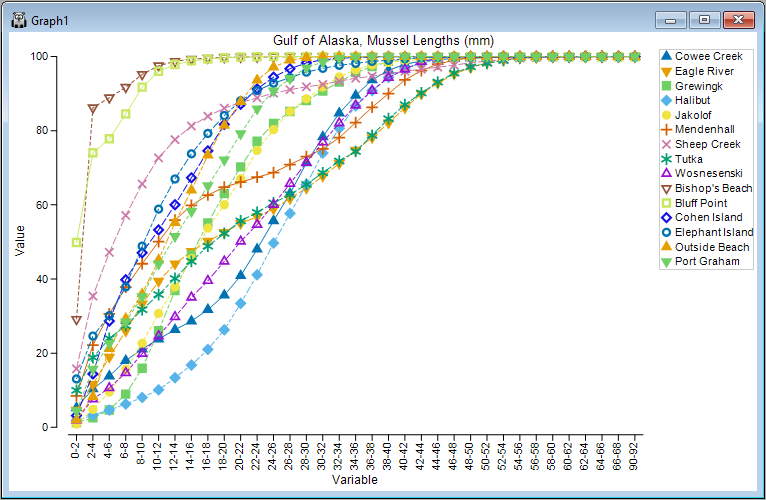
15.6 Line plots for samples
There is a new facility in PRIMER 8 to create Line plots in two different ways:
- with one line for every variable (across all samples); or
- with one line for every sample (across all variables).
This is a considerable improvement on the line plot dialog in PRIMER 7, which only could be implemented to draw lines for variables (Fig. 15.6).
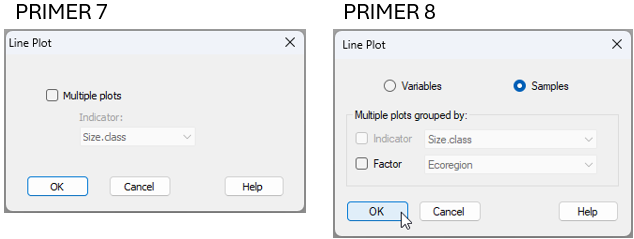
Fig. 15.6 Comparison of the Plots > Line Plot... dialog window in PRIMER 7 (at left) vs PRIMER 8 (at right).
We saw this tool earlier in section 13.3, in the analysis of mussel size-classes at different sites in the Gulf of Alaska (the data file is called 'Gulf_of_Alaska_mussels.pri', located in the folder 'Examples_P8' > 'Gulf_of_Alaska_mussels').
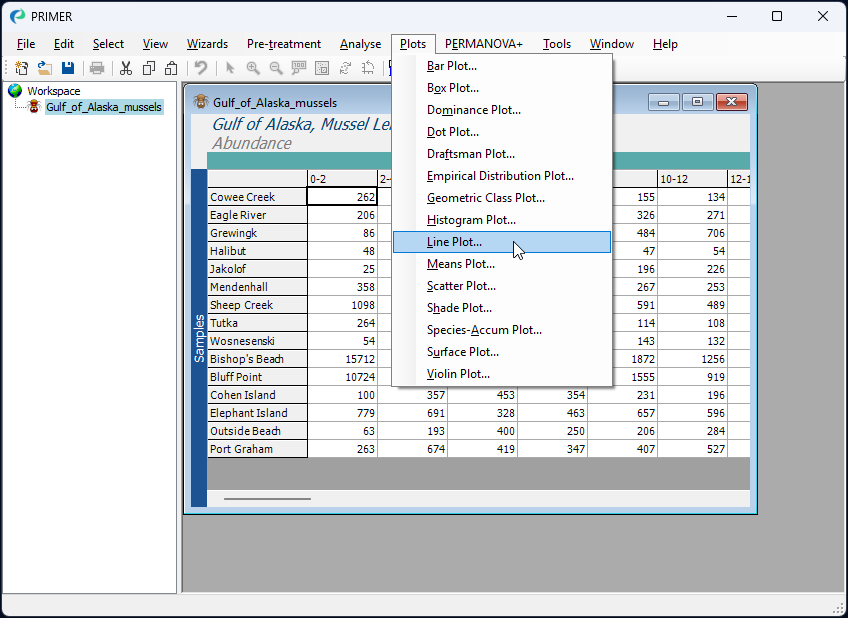
From the mussel data sheet, after standardising the original raw count data to cumulative percentages (the variables are the sizes classes here), resulting in a sheet called 'Data1', we can choose to create a line plot with a line for each sample (the sites here) by clicking Plots > Line Plot..., like so:
In the 'Line Plot'dialog window, we simply choose to view lines for the ($\bullet$ Samples), and then click 'OK'.
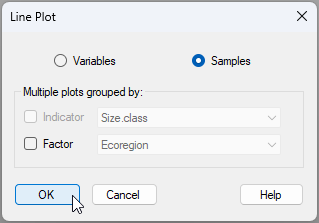
Note: change the above dialog if the wording changes Note in the above dialog that we also have the option to output multiple line plots corresponding to groupsof samples identified via a factor (or groups of variables identified by an indicator, if we are drawing lines for variables).
The resulting line plot for this example is shown below: